Essential Tips for Buying a Used Laptop Safely
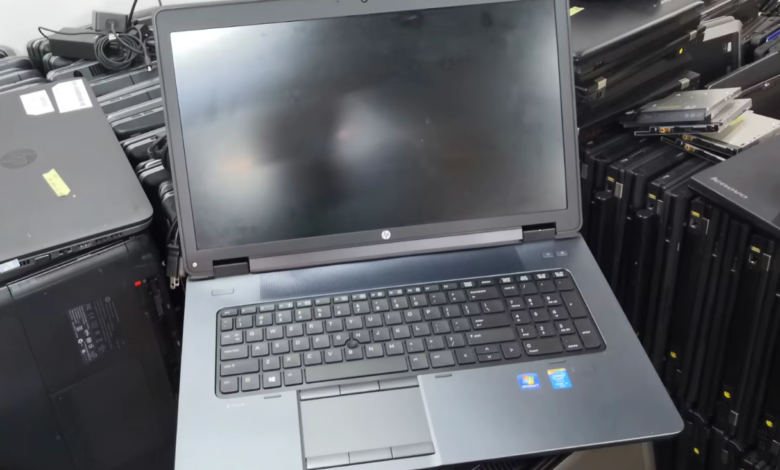
Buying a brand-new computer can put a serious dent in your wallet. Consequently, the market for pre-owned electronics has exploded. Whether you are a student on a tight budget or a professional looking for a secondary machine, buying a used laptop can be a brilliant financial move. However, it is a path fraught with potential pitfalls—from dying batteries to hidden hardware failures.
According to a recent report by The Verge, the lifespan of modern laptops has increased significantly, making the secondary market more viable than ever. But how do you ensure you aren’t buying a lemon? Here is your comprehensive guide to navigating the used market safely and securing a device that serves you well.
1. Define Your Needs and Budget First
Before you even start scrolling through listings, you must establish what you need. Are you looking for a budget-friendly laptop for basic word processing, or do you need a powerhouse for video editing?
For Basic Use: Look for at least an Intel Core i5 (8th Gen or newer) and 8GB of RAM.
For Heavy Duty: Prioritize dedicated graphics cards and at least 16GB of RAM.


Knowing your specs prevents you from overpaying for power you don’t need or buying a machine that is too slow for your workflow.
2. Choose the Right Seller
Not all marketplaces are created equal. You generally have two options: buying from a certified refurbisher or a private seller.
According to CNET, while private sales often offer the lowest prices, certified refurbished items usually come with a warranty, providing a safety net that Craigslist or Facebook Marketplace cannot match.
Comparison: Private Seller vs. Certified Refurbished
| Feature | Private Seller (eBay, Marketplace) | Certified Refurbished (Amazon, Best Buy) |
| Price | Generally Lower | Slightly Higher |
| Warranty | Rare or Non-existent | Yes (Usually 90 days to 1 year) |
| Inspection | User Beware | Professionally Tested |
| Return Policy | Varies/Difficult | Standardized & Easier |
3. The Physical Inspection (The Exterior)
If you are meeting a local seller, inspect the laptop condition in person. If buying online, ask for high-resolution photos from every angle—stock photos are a red flag.
Check the Hinges: Open and close the laptop multiple times. It should feel sturdy, not loose or wobbly.
Look for Cracks: hairline cracks near the corners often indicate the laptop was dropped.
Screw Check: Are any screws missing from the bottom case? This implies an amateur has opened the laptop and potentially messed with the internals.
4. The Critical Component: Battery Health
The battery is the first component to degrade in a portable computer. A laptop that looks brand new but holds a charge for only 30 minutes is a bad investment.
How to Check Battery Health:
Windows: Open the Command Prompt and type
powercfg /batteryreport. This generates an HTML file showing the design capacity versus the current full charge capacity.Mac: Hold the Option key and click the Apple menu, then select System Information > Power. Look at the “Cycle Count.”
TechRadar notes that once a battery passes 500-800 cycles, its capacity drops significantly. If the capacity is below 80% of its original design, you should negotiate a lower price to cover the cost of a replacement.
5. Screen and Keyboard Diagnostics
Turn the laptop on and look closely at the display. You are looking for dead pixels (tiny black or white spots that don’t change color) or pressure marks (bright spots). Open a plain white background and a plain black background to spot these easily.
Next, test the keyboard. A common issue with used electronics is sticky or non-functional keys.
Open a text editor or use a browser-based “Keyboard Tester.”
Press every single key.
Test the trackpad gestures (scrolling, clicking).
6. Check the Specs and Ports
Never take the seller’s word for it. You need to verify the laptop specs manually to ensure you aren’t being scammed with older hardware disguised as new.
Windows: Go to Settings > System > About. Verify the Processor (CPU) and RAM.
Storage: Check This PC or Disk Management to confirm the hard drive size and type (SSD is a must for speed).
Ports: Bring a USB drive and headphones. Plug them into every port to ensure they recognize the device.
7. Watch Out for Security Locks
This is a nightmare scenario: you buy a laptop, take it home, and find it is BIOS-locked or linked to a corporate management system.
According to PCMag, buyers should always ensure the previous owner has removed all iCloud accounts (for MacBooks) and removed any BIOS passwords. If you turn on the computer and see a “Managed by [Company Name]” screen or a padlock icon asking for a password before Windows loads, do not buy it. It might be stolen property.
Frequently Asked Questions (FAQ)
Q: Is it safe to buy a laptop that is 5 years old?
A: generally, yes, provided it has an SSD and at least 8GB of RAM. However, be prepared to replace the battery, as it likely won’t hold a charge for long.
Q: What is the difference between “Used” and “Refurbished”?
A: “Used” means it was owned by someone else and sold as-is. “Refurbished” means it was inspected, repaired if necessary, cleaned, and repackaged, often with a warranty.
Q: Should I meet a seller at their home?
A: No. For safety, always meet in a public place with Wi-Fi, such as a coffee shop or a library, so you can test the internet connection.
Q: Can I upgrade the RAM later?
A: It depends on the model. Many modern ultrabooks have RAM soldered to the motherboard. Always check the specific model’s upgradeability before purchasing.
Final Thoughts
Buying a used laptop doesn’t have to be a gamble. By following these essential tips, performing a thorough hardware diagnostic, and keeping your emotions in check, you can find a high-quality machine for a fraction of the retail price. Take your time, inspect carefully, and be ready to walk away if something feels off.