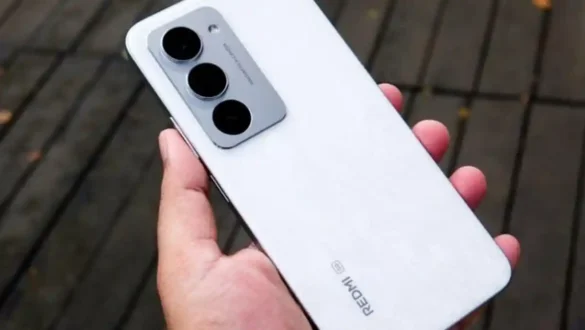
Why the cellphone suddenly can’t take screenshots?

Smartphone has become an inseparable part of everyday life. One of the most frequently used features is Screenshots—Take a screenshot of what’s showing on the phone. However, what happens if suddenly your cellphone can’t take screenshots? This article will discuss the main causes of why the cellphone suddenly can’t take the screenshot, and provides a solution that you can try to overcome it.
1. What is a screenshot and why is it important?
Screenshot is a digital screenshot of what is being displayed on your phone screen. This feature is very useful in various situations, such as sharing information quickly, storing proof of transactions, or documenting important conversations. Because its function is so essential, when this feature does not work, it can cause inconvenience.
1.1. How does the screenshot work?
Technically, when you take a screenshot, the phone’s operating system processes the given command (usually by pressing the combination of keys or using the swipe feature) to copy the current screen display into the image file. This file is then saved in a gallery or special folder for screenshots.
2. Common Causes Why Hp Can’t Screenshot
If your cellphone suddenly can’t take screenshots, there are several factors that may be the cause. Let’s explore one by one.
2.1. Application restrictions or privacy policies
some applications, especially those related to Paid content or banking, implement a strict policy that prevents users from taking screenshots. This is done to protect the privacy and security of data. For example, banking applications often block the screenshot feature to prevent users from storing sensitive information such as account balances or transaction history.
2.2. full memory
Phones that have almost full storage space may have difficulty performing basic functions, including taking screenshots. The operating system requires space to store the screenshot file, and if the internal memory is already very limited, this process may fail.
2.3. bug or system problem
bug or system problem On your phone can also be the reason why the screenshot feature does not work. This can happen after imperfect operating system updates or applications that conflict with the phone’s functionality. Problems like this can cause features that previously worked well to be disrupted.
2.4. Wrong key combination
Some phones have a special button combination to take screenshots, such as pressing the power button and volume down simultaneously. If this combination is not pressed properly, the phone may not respond by taking screenshots. In some cases, a broken physical button can also cause this problem.


2.5. Conflicted third-party applications
If you install a third-party application that changes the function of the button or changes the standard screenshot function of the phone, it could be the reason why your cellphone can’t screenshot. Some of these applications may not be compatible with your operating system or device, which causes conflicts and distractions.
2.6. Improper phone settings
It is also possible that your phone’s settings have been accidentally changed, thus causing the screenshot feature to not work. For example, the screenshot feature could be accidentally disabled in the settings menu, or there are other annoying settings.
3. How to Overcome a Cellphone That Can’t Screenshot
After knowing the various possible causes above, here are some steps that you can try to solve this problem.
3.1. Check application restrictions
If a problem occurs when you try to take a screenshot in a specific application, check if the app has restrictions. You can try taking screenshots in another application to see if the problem is specific to one application or occurs throughout the system.
3.2. Free the phone memory
If full memory is a problem, try to delete some unnecessary files or move data to external or cloud storage. Make sure your phone has enough space to store new screenshots.
3.3. Restart your phone
Sometimes, simple problems like this can be solved by restarting the phone. Restart can help restore the phone’s normal function by refreshing the operating system and closing the application that may cause conflict.
3.4. Check for system updates
Make sure your phone’s operating system is updated to the latest version. System updates often include bug fixes and stability improvements that can solve problems like this. You can check for updates via phone settings.
3.5. Use an alternative screenshot application
If the problem persists, you can try using a third-party app specifically designed to take screenshots. There are many applications in Google Play Store or App Store who can help you, such as Easy Screenshot or Touch Screenshot. However, make sure the application is safe and reliable.
3.6. Check phone settings
Try to check your phone’s settings, especially the sections related to security and privacy. Make sure there are no settings that block the screenshot feature. If necessary, reset the phone settings to factory settings, but make sure you have backed up all the important data before doing so.
4. Prevent future screenshot problems
Once you have successfully solved the screenshot problem, there are several steps you can take to prevent similar problems in the future.
4.1. Diligently clean memory
Always make sure your phone’s memory has enough space by regularly cleaning unnecessary files. You can use the app Memory Cleaner To help keep the phone optimal.
4.2. Check for updates periodically
Always check for operating system and app updates periodically. This update not only fixes bugs but also improves the security and performance of your phone.
4.3. Avoid unclear applications
Always be careful when installing third-party applications, especially those asking for unfair access permissions or changing the basic functions of the phone. Make sure the application you install has a good reputation and positive reviews from other users.
4.4. Take care of physical buttons
If your phone uses a physical button to take a screenshot, make sure it is in good condition. If the button starts to feel hard or unresponsive, consider taking your phone to an official repair service.
5. CONCLUSION
Problem Screenshots What does not work on mobile phones can be caused by various factors, ranging from application restrictions to system bugs. By understanding the cause, you can quickly find the right solution. Remember to always keep your phone in optimal condition and be careful in installing third-party applications.
FAQ
1. Why my cellphone suddenly can’t take screenshots?
This problem can be caused by application restrictions, full memory, system bugs, wrong key combinations, conflicting third-party applications, or inappropriate phone settings.
2. How to solve a cellphone that can’t take screenshots?
Some of the ways you can try are checking app restrictions, cleaning memory, restarting your phone, checking system updates, using alternative screenshots, and checking your phone settings.
3. Is a third-party application safe to use to take screenshots?
Most third-party apps available in official app stores like Google Play Store or App Store are safe to use. However, always check the user reviews and the access permissions requested by the app before installing them.
4. Why do some applications block the screenshot feature?
Certain applications, especially those related to banking or paid content, block the screenshot feature to protect the privacy and security of user data.
By following the steps mentioned, you can solve the problem of screenshots on your phone and make sure this function continues to run smoothly.