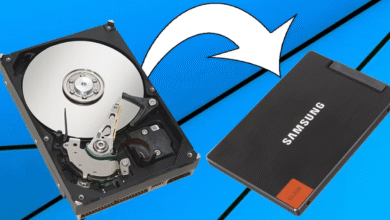
How to Install Windows 11 on Unsupported PC Hardware
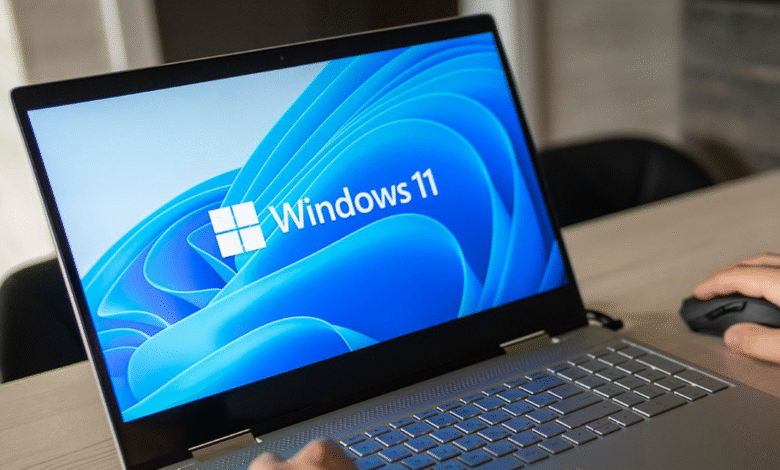
When Microsoft announced Windows 11, the excitement was quickly dampened for many users by the stringent system requirements. Suddenly, capable computers running Windows 10 smoothly were declared “obsolete” simply because they lacked a TPM 2.0 security chip or had a slightly older processor.
If you are frustrated by the “This PC can’t run Windows 11” error message, you are not alone. Fortunately, the tech community has found reliable workarounds. This guide will walk you through how to install Windows 11 on unsupported PC hardware without needing a degree in computer science.
Understanding the Risks Before You Begin
Before we dive into the technical steps, it is important to manage expectations. Microsoft has set these requirements primarily for security and stability reasons. According to Microsoft’s official documentation, running Windows 11 on older hardware might result in more system crashes (Blue Screen of Death) compared to supported devices.
Furthermore, as noted by The Verge, there is a possibility that unsupported PCs might eventually stop receiving crucial security updates. If you proceed, you are doing so at your own risk. However, for many users, the benefits of the new interface and features outweigh these potential downsides.
The Requirements vs. The Reality
To understand what we are bypassing, let’s look at what the official installer checks for versus what can actually run the operating system.
| Component | Official Requirement | Can it be Bypassed? |
| Processor | 8th Gen Intel or AMD Ryzen 2000+ | Yes (Registry/Rufus hack) |
| Security | TPM 2.0 Chip | Yes (Registry/Rufus hack) |
| Secure Boot | UEFI, Secure Boot capable | Yes (Rufus hack) |
| RAM | 4 GB | No (System will be too slow) |
| Storage | 64 GB | No (Installation will fail) |
As you can see, the physical limitations (RAM and Storage) are strict, but the artificial limitations (CPU generation and TPM) are merely software checks that we can disable.
Method 1: The Rufus Method (Clean Install)
This is widely considered the easiest and most reliable method for a fresh installation. Rufus is a popular free tool used to create bootable USB drives, and its latest versions include a specific feature to remove Windows 11 restrictions.
Download the Windows 11 ISO: Visit the official Microsoft website and download the Windows 11 Disk Image (ISO).
Download Rufus: Get the latest version of Rufus from their official site.
Insert a USB Drive: You will need a flash drive with at least 8GB of space. Note that all data on it will be erased.
Configure Rufus:
Open Rufus and select your USB drive.
Click “Select” and choose the Windows 11 ISO you downloaded.
Click “Start.”
The Magic Step: A dialog box will pop up titled “Windows User Experience.” Here, ensure you check the box that says “Remove requirement for 4GB+ RAM, Secure Boot and TPM 2.0.” You can also remove the requirement for an online Microsoft account here.
Install: Once Rufus finishes creating the drive, plug it into your target PC, boot from the USB, and follow the standard installation prompts. The installer will skip the hardware check entirely.
Method 2: The Registry Editor Hack (Upgrade from Windows 10)
If you do not want to wipe your data and prefer to upgrade directly from Windows 10, you can trick the setup tool using the Registry Editor.
Warning: Editing the registry can be risky if you touch the wrong keys. Follow these steps exactly.
Open Registry Editor: Press
Win + R, typeregedit, and hit Enter.Navigate to the Path: Go to
HKEY_LOCAL_MACHINE\SYSTEM\Setup\MoSetup. If theMoSetupfolder doesn’t exist, right-click onSetup, select New > Key, and name itMoSetup.Create a New Value: Inside the
MoSetupfolder, right-click on the empty space in the right pane. Select New > DWORD (32-bit) Value.Name the Value: Name it exactly:
AllowUpgradesWithUnsupportedTPMOrCPU.Modify the Value: Double-click this new entry and change the “Value data” from
0to1. Click OK.Run Setup: Now, mount your Windows 11 ISO or run the Installation Assistant. It should ignore the CPU and TPM deficiencies.
According to a report by PCWorld, this registry tweak is actually acknowledged by Microsoft as a valid workaround, though they still advise against it for general consumers.
Post-Installation: What to Expect
Once you successfully install Windows 11 on unsupported PC hardware, the experience is usually quite smooth. The new UI is snappy, and features like Snap Layouts work perfectly.
However, keep an eye on Windows Update. Sometimes, major feature updates (like version 23H2 or 24H2) might not install automatically. In such cases, you may need to repeat the “Rufus Method” to perform an “in-place upgrade” using a newer ISO file to get the latest features.
Frequently Asked Questions (FAQ)
Q: Is it illegal to install Windows 11 on unsupported hardware?
A: No, it is not illegal. You are simply bypassing an installation check. However, you still need a valid Windows license to activate the software.
Q: Will my games run slower?
A: Generally, no. According to various tech benchmarks, gaming performance on Windows 11 is virtually identical to Windows 10, even on older CPUs.
Q: Can I go back to Windows 10 if I don’t like it?
A: Yes. If you performed an upgrade (Method 2), you have a 10-day window to “Rollback” via the Recovery settings. If you did a clean install (Method 1), you will need to reinstall Windows 10 from scratch.
Q: Does this fix the Secure Boot requirement?
A: The Rufus method bypasses the check during installation. However, some games (like Valorant) require Secure Boot and TPM 2.0 to be active to run on Windows 11, which might still be an issue for very old hardware.
Conclusion
Bathing your old PC in the fresh look of Windows 11 is entirely possible and, for most, a rewarding upgrade. Whether you choose the Rufus route for a clean slate or the Registry hack to keep your files, you are extending the life of your hardware. Just remember to back up your important data before making major changes, and enjoy the new OS!