How to Change Word 2010 to 2007

AAre you facing difficulties when opening Word 2010 (.docx) files in Word 2007? Don’t worry! In this article, we will provide a step-by-step guide on how to easily convert Word 2010 to 2007. Let’s get started!
Why convert Word 2010 documents to 2007 format?
Technological developments often cause updates to software, including Word. However, not everyone always updates their software version. Sometimes, there are situations where you have to share the document with the 2007 version of Word users.
This different version of Word can cause compatibility issues when opening a document. Therefore, converting documents from Word 2010 to an older version becomes important so that your document can be accessed and opened correctly by recipients using older versions of Word.
Steps to Change Word 2010 to 2007
Here is a step guide to convert Word 2010 documents to 2007 format:
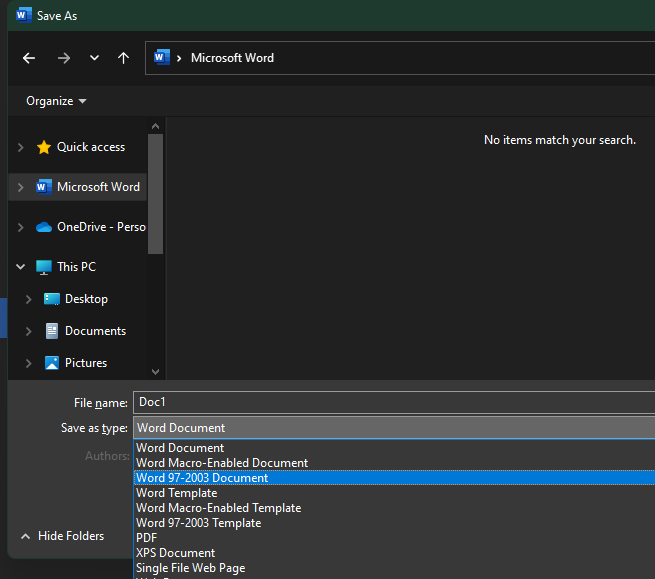
- Select the “File” tab in the main menu of Word.
- Select the “Save As” option to save the document in a format compatible with Word 2007.
- In the “Save As” window, specify the storage location and give the appropriate file name.
- At the bottom of the “Save As” window, click the “Save As Type” dropdown box and select “Word 97-2003 Document (.doc)”.
- After selecting the appropriate format, click the “Save” button to save the document in Word 2007 format.

By following the steps above, you have successfully converted a Word 2010 document to an older format. Now your document is ready to be opened and used by Word 2007 users without compatibility issues.
Frequently Asked Questions About Convert Word 2010 to 2007
Here are some common questions about the Word 2010 conversion process:
Apakah konversi akan mengubah isi dokumen?
No, the conversion process will only change the file format (.docx to .doc) without changing the contents or layout of the document.Bisakah saya mengonversi banyak dokumen sekaligus?
Yes, you can convert multiple documents at once by using the “Save As” function on each document.Bisakah saya kembali ke format Word 2010 setelah mengonversi?
Yes, you can convert back from 2007 format to Word 2010 by following the same steps.Apakah ada alternatif lain untuk mengonversi Word 2010 ke 2007?
Yes, in addition to using the “Save As” function, you can also use third-party software specifically designed for word conversion.
Conclusion
Converting Word 2010 documents to previous formats is a simple but important process to ensure the compatibility of your documents with previous Word users. By following the step-by-step guide above, you can easily convert a Word 2010 document into an earlier format that can be accessed by all users.
Don’t forget that ensuring document compatibility is an important aspect when sharing a document with others. Using the right way to change the document format, you can ensure that the messages and information you want to convey can be accessed smoothly by the recipient.


Now you have mastered how to convert Word 2010 documents to the previous format! So, feel free to share the document with Word 2007 users and make sure everyone can read your document without any problems.