5 ways to turn off ads on Samsung cellphones, very easy!

How to turn off advertisements that appear on Samsung cellphones
Advertisements that frequently appear on Samsung cellphones can be very annoying to users. Especially when advertisements continuously appear uncontrolled, this can make users lose time and comfort when using the device. To overcome this problem, here are several ways you can turn off ads on your Samsung cellphone.
Using HP Settings
Here are the steps to turn off ads via the Settings menu:
- Open your Samsung cellphone and open the “Settings” menu.
- Select “Connections”.
- Select “More connection settings” or “Other connection settings” in Indonesian.
- Select “Private DNS” and type the address “dns.adguard.com”, then click “Save”.
- Finished.
After carrying out these steps, your Samsung cellphone will automatically block ads, both from the browser and applications on the device.
Turning Off Ads Via Google Chrome
To turn off ads on Samsung cellphones, you can also use the Google Chrome browser. Follow these steps:
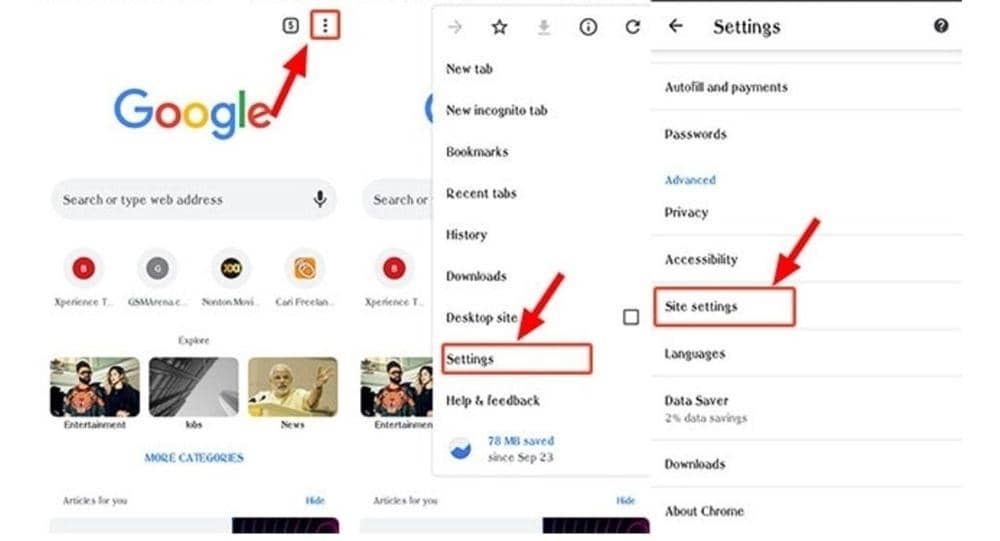
- Open the Google Chrome browser on your Samsung cellphone, then select the three dots at the top right and click.
- Select “Settings” then look for the “Site Settings” option.
- Click “Pop-ups and redirects” and turn the toggle off until it turns gray.
- Go back to the “Settings” menu and go to “Ads”.
- Disable ads by sliding the toggle to the off position in the “Ads” menu.
Finished. Now pop-up ads will no longer appear when you browse using Google Chrome.
Turning Off Ads from Built-in Apps
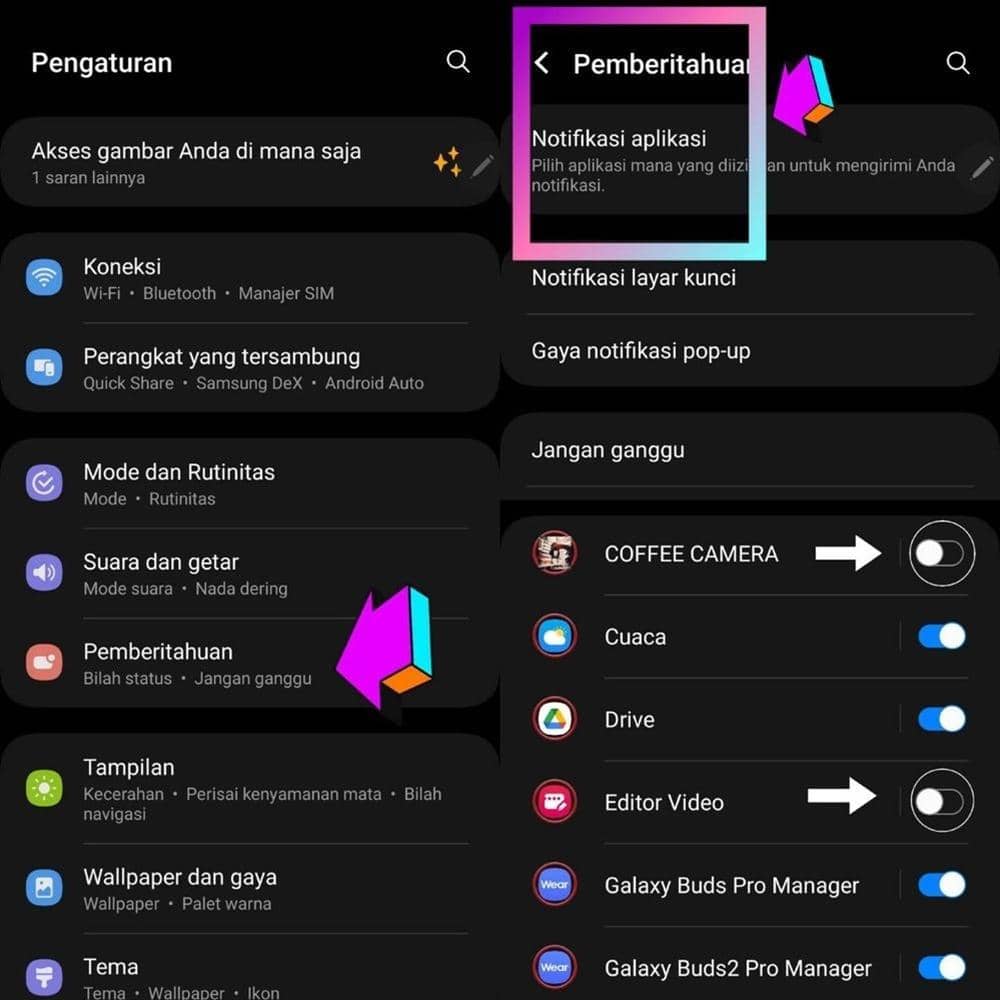
Advertisements can also infiltrate through built-in applications, for example Samsung Pay. Here’s how to turn off marketing ads from native apps:
- Open the application for which you want to turn off ads, for example Samsung Pay.
- Enter the Samsung home page.
- Tap the three dots icon in the top right corner.
- Select “Settings”.
- Look for the “Marketing” option and slide the toggle to make it off.
- Close the application and reopen it.


Turning Off Ads Using AdBlock
You can also turn off annoying pop-up ads on your Samsung cellphone by installing AdBlock. Here’s how to download and install the AdBlock application:
- Open the Google Chrome browser then type the address http://getadblock.com/.
- Click the red “Get AdBlock Now” button in the middle of the website page.
- You will be directed to the extension installation page in the browser.
- Select “Add to Chrome” to have the extension installed in Google Chrome.
- Click the red stop sign.
- Check the settings options as desired, then save the settings.
Finished.

Turning Off Ads Using Samsung Internet
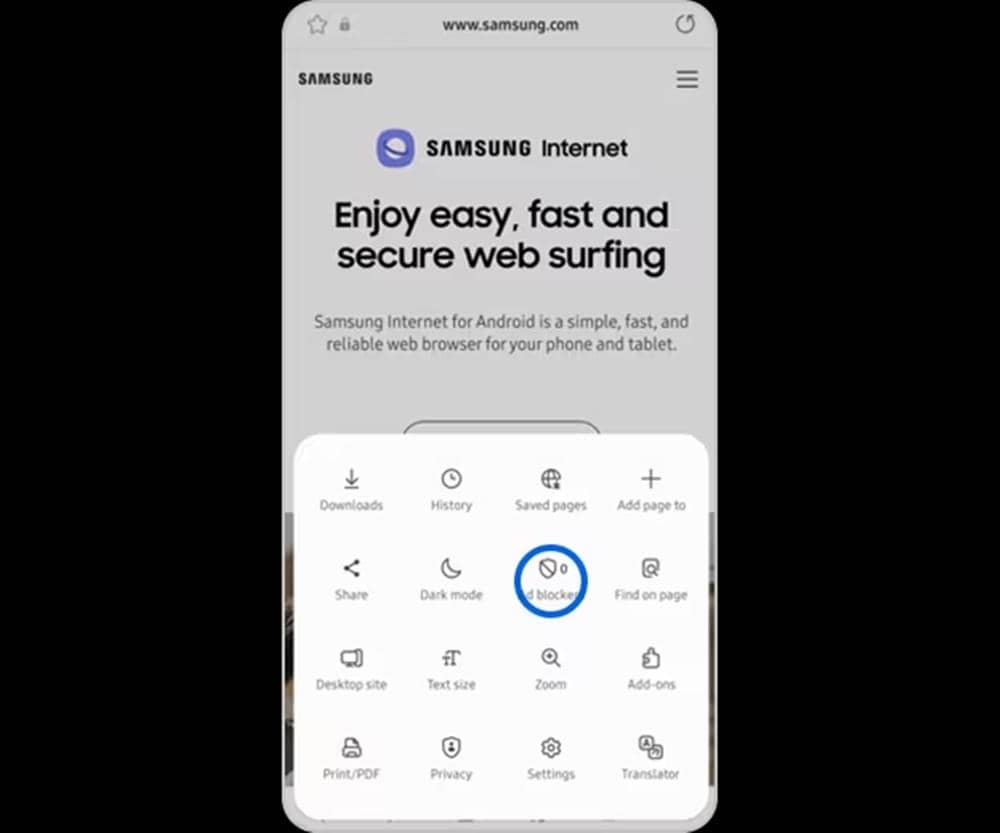
The following is how to block ads on a Samsung cellphone using the Samsung Internet application:
- Open the Samsung Internet App.
- Tap the three lines icon at the bottom right of the Samsung cellphone screen to access Settings.
- Select the ‘Settings’ option.
- Select ‘Sites and downloads’.
- Select the ‘Block pop-ups’ option.
- Install an Ad Blocker. Return to the Samsung Internet main menu, then select ‘Ad blockers’. Download the recommended ad blocker.
By following these steps, you can reduce or turn off advertisements that appear on your Samsung cellphone. This certainly provides a more comfortable and hassle-free usage experience.