How to Enable Google Account Sync

mManage Android devices optimally not only about having the right apps, but also about managing Google account sync properly. In this guide, we will discuss practical steps on how to enable Google account sync on your device.
Steps and How to Enable Google Account Sync on Your Android Device
To ensure a seamless user experience and easy access to various Google services, enabling Google account sync is an important step. Here are the steps:
Open Settings on your device
Open the Settings menu on your Android device. This is usually located on the main screen or can be accessed through the application menu.
Select the “Account” or “Account and Sync” option
In the settings menu, find the options related to the account. This can be called “Account” or “Account and Sync” depending on your device version.
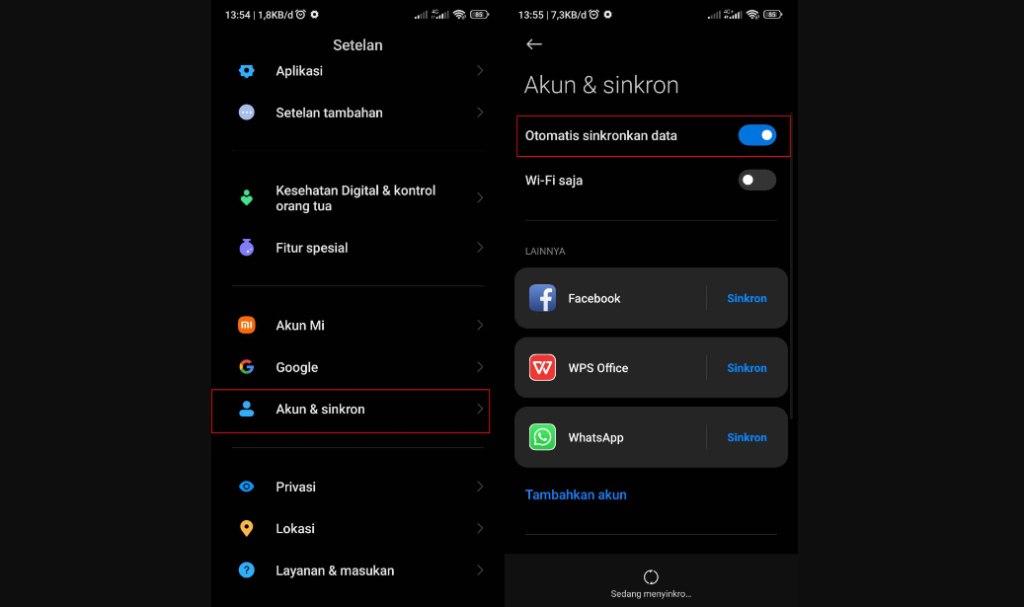
Add a Google account
Select “Add Account” and select the “Google” option from the list of available options.
Enter your account information
Enter your Google Account email address and password. Follow the on-screen instructions to complete this process.
Set sync settings
Once you add a Google account, you will be given the option to configure the sync settings. Select the type of data you want to sync, such as contacts, calendars, and more.
Complete the process
After you have configured the sync settings, select “Finish” or “Finish” to complete the process.

Advantages of Enable Google Account Sync
A Google account that is always synchronized is not only about ease of access, but also provides a number of other advantages, including:
- Sync contacts and calendar: Make sure your contacts and schedule are always updated on all devices.
- Access to Google Drive: Directly access your files on Google Drive from your Android device.
- Automatic update of the application: The application downloaded from the Google Play Store will be automatically updated.
FAQ (frequently asked questions)
1. Can I enable Google account sync for more than one account?
Yes, you can add more than one Google account on your device. Follow the same steps to add additional accounts.
2. Do I need an internet connection to use Google account sync?
Yes, to synchronize and update data, an internet connection is required. Make sure your device is connected to a data network or Wi-Fi.
3. How do I check my Google account sync status?


Go to Settings, select “Account,” and select your Google account. There, you will see the sync status and the option to adjust the settings.
By following this guide, you now have a Google account that is optimally synchronized with your Android device. Be sure to keep your synchronization settings updated to suit your needs.