WhatsApp messages are not sent even though the signal is good? This is the cause and solution

Delayed WhatsApp Message Problem: Causes and Solutions
WhatsApp is now one of the main communication applications for millions of users in Indonesia, both for personal and business purposes. However, many users experience problems when their messages are delayed or not sent even though the internet signal seems stable. This can be very annoying, especially when the message is very important.
Problems like this are often caused by several factors. Here are common causes that can make WhatsApp messages delayed:
Unstable Internet Connection
WhatsApp requires a strong and stable internet connection. If the Wi-Fi signal or cellular data is weak, disconnected, or inadequate, the message delivery will be hampered.Disruption of the application system or device
Bugs in the WhatsApp application itself or interference with the mobile operating system can cause a variety of functionality problems, including delays in sending messages.Outdated WhatsApp version of the app
The use of the old version of WhatsApp is often a source of trouble. The outdated version may have a bug that has not been fixed or is not compatible with the latest server updates.Expired HP operating system
The WhatsApp application has the minimum requirements for the mobile operating system. If your device’s OS is too old and doesn’t meet those standards, WhatsApp may not be operating properly.Full device storage memory
The exhausted internal storage space of the phone can interfere with the performance of the application, including WhatsApp, thereby hampering the process of sending messages.
10 Effective Solutions to Overcome WhatsApp Can’t Send Messages
If you’re facing a delayed WhatsApp message problem, here are ten practical steps you can try:


Check your internet connection again
Make sure your phone has a stable and adequate internet connection. You can test internet speed through sites like speedtest.net or try to open another website through the browser to ensure connectivity.Make sure WhatsApp has data access permissions
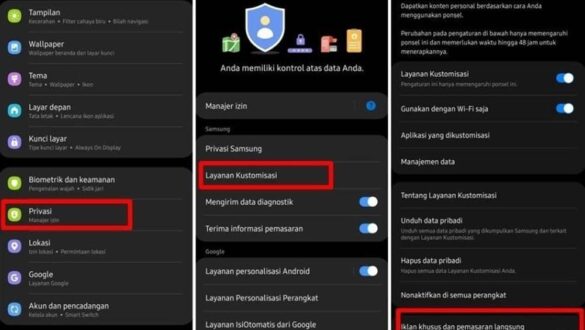
Some privacy or data management settings on mobile phones may limit internet access to certain applications. Make sure WhatsApp has been given full permission to use your mobile data or Wi-Fi. These settings can generally be found in the “Data usage” or “Applications” menu in your phone’s settings.Restart (restart) the WhatsApp application
Sometimes, simple problems can be solved by reloading the application. Close the WhatsApp application completely, including from the background (recent apps), then open it again. This will refresh the application system and may eliminate temporary interference.Restart (restart) your phone
If restarting the app doesn’t work, try restarting your entire phone. This action can help refresh the device’s operating system and resolve software conflicts that might affect WhatsApp’s performance.Clear WhatsApp App Cache
Over time, the application collects cache files (temporary data) that can stack up and cause performance problems. To clear WhatsApp cache, go to your phone settings, search for “Applications” or “App Management”. Select WhatsApp, then look for the “Storage” option and select “Clear Cache”.Reinstall the Whatsapp App
If the steps above have not been successful, reinstalling WhatsApp can be an effective solution. This will make sure you have a clean and up-to-date installation, while deleting all the cache data that may be stubborn. Don’t forget to back up your chat history before reinstalling!Make sure the phone storage space is available
Phones with full internal memory can cause various applications to not function optimally, including WhatsApp. Check your storage space and delete files, photos, videos, or apps that are no longer needed to free up space.Update Your WhatsApp App
WhatsApp developers regularly release updates to fix bugs, improve performance, and add new features. Check the Google Play Store (for Android) or the App Store (for iOS) if there is an update available for your WhatsApp, then install it.Update Mobile Operating System
Make sure the operating system (OS) of your phone is the latest version supported. Expired operating systems may not be compatible with the latest version of WhatsApp, causing problems. Perform OS updates through the “Software Update” menu in your phone’s settings.Check WhatsApp Server Status
Sometimes, the problem is not with your device or connection, but on the WhatsApp server itself. Visit a website like downdetector.id to check if there is a disturbance report on the WhatsApp server. If there is, wait until the problem is resolved by the WhatsApp team.
By following this guide, you are expected to be able to solve the problem of delayed WhatsApp messages and communicate smoothly again.