5 Hidden iPhone Lock Screen Features You’ll Love

The Lock Screen is a convenient feature of the iPhone, serving as both a privacy barrier and a quick way to view incoming notifications without unlocking the device. However, it also offers a range of additional functions that many users might not be aware of. With the right apps and settings, you can access your camera, use Widgets, and even activate features like Siri and Apple Wallet directly from the Lock Screen.
Learning to utilize these features can save time and effort by allowing you to perform small tasks without unlocking your phone. Whether you need to pay for something, check the weather, track an Uber ride, or control your smart home, the Lock Screen provides a streamlined way to handle these actions with just a glance and a few taps.
Activate the Camera and Flashlight
One common frustration when taking photos is the time it takes to unlock your phone and open the camera app. To speed this up, you can access the camera directly from the Lock Screen. Simply swipe left on the screen or tap and hold the small camera icon at the bottom-right corner. Either action will open the camera app instantly, ready for you to take a photo.
Similarly, if you find yourself in the dark, you can quickly turn on your iPhone’s flashlight without pulling down the Control Panel. At the bottom left of the Lock Screen, there is a small flashlight icon that, when tapped and held, turns the light on. While there are other ways to enable the flashlight, such as setting it up in advance, the Lock Screen button is a convenient alternative if you haven’t done so.
Load Up Apple Wallet
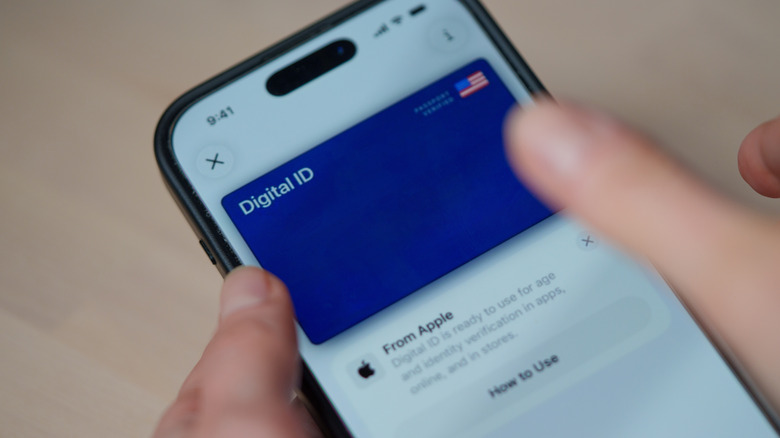
Apple Wallet has become a popular replacement for physical wallets, allowing users to make payments using their iPhones. The convenience of Apple Wallet is enhanced by its accessibility from the Lock Screen. If you have the Apple Wallet app with a payment method already set up, you can double-tap the side or home button while the Lock Screen is active to bring it up.
If this feature isn’t enabled, you can turn it on in the Wallet and Apple Pay settings. Once activated, the app defaults to your primary payment method, allowing you to tap it on a reader to complete purchases. You will still need to authenticate with Face ID or Touch ID, but once it’s open, you can scroll down to view other items stored in your Apple Wallet, such as travel passes or loyalty cards.
Live Activities
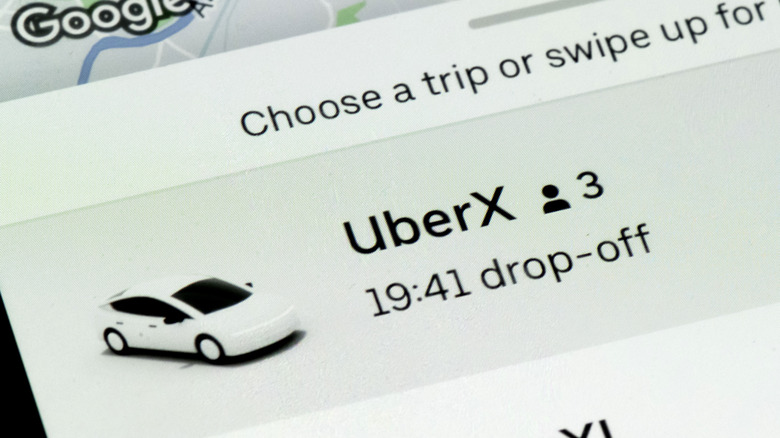
Live Activities is a feature that allows compatible apps to display updates and controls on your Lock Screen. This means you don’t have to unlock your phone to check important information. For example, if you’re waiting for an Uber, you can see the driver’s progress directly on the Lock Screen.
This feature works with various apps, including Maps for location tracking and Apple TV for sports updates. It also lets you control music and movies, offering pause and track skip options alongside the current song or video title. Many Apple-branded and third-party apps support Live Activities, making it a versatile tool for staying informed without unlocking your device.


Use Widgets
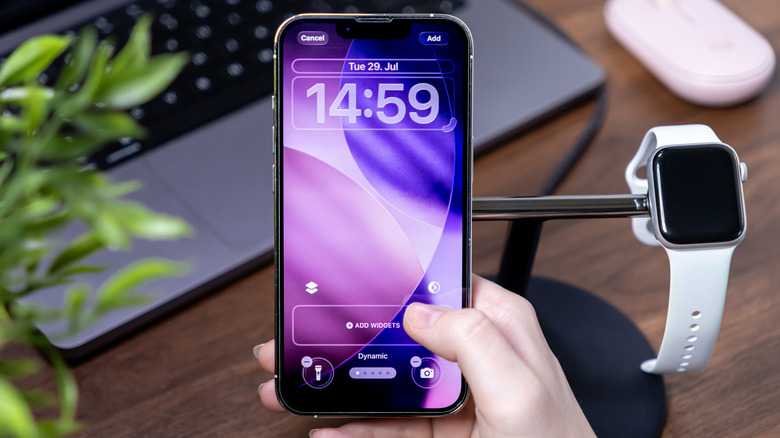
Widgets provide a way to access more detailed information from your apps directly on the Lock Screen. You can place up to four Widgets beneath the time display, allowing you to check important apps and get relevant information quickly.
To customize your Lock Screen, tap and hold on it to enter the Customize menu and select which Widgets you want to display. There are numerous Widgets available, both pre-installed and downloadable from the App Store. Examples include checking the weather, viewing your schedule, and seeing how many new emails you’ve received. Some advanced Widgets, like Otter for voice recording or MultiTimer for multiple timers, can significantly enhance productivity.
Use Siri
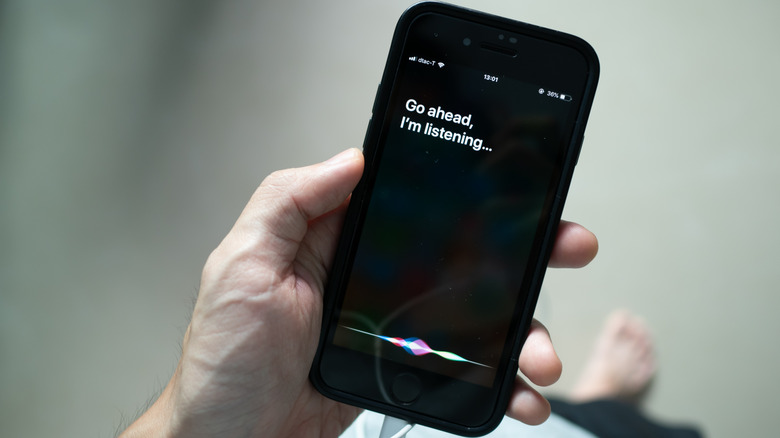
If you need to access a function on your iPhone’s Lock Screen that isn’t immediately visible, Siri can help. You can summon Siri by pressing the side button or saying “Hey Siri.” However, you must enable the “Listen for Hey Siri” option in the Siri & Search settings.
Once enabled, Siri can perform a variety of tasks from the Lock Screen, such as making calls, setting reminders, or reading messages. Additionally, Siri can act as a bridge for other apps that don’t have direct Lock Screen functionality. For instance, you can use Siri to control features in the Apple Home app, like locking doors or adjusting smart lighting.