how to open blocked sites without apps on chrome

Limited internet access or blocked websites is often a challenge for many internet users. This situation can be experienced by anyone, whether surfing for personal or work purposes. One of the common problems is when we cannot access certain sites due to blocking the government or internet service providers (ISPs). In this article, we will discuss how to open blocked sites without apps on chrome, and how to solve a blocked site by filling in a blocked domain ip on windows filehost.
Why can sites be blocked?
Before going into the technical discussion, let’s first understand why certain sites can be blocked. Governments or ISPs often block access to websites for reasons such as:
- Illegal content: Sites containing pirated content, gambling, or pornography are usually directly blocked by the government.
- Security: Sites that are indicated to contain malware or security threats can be blocked to protect users.
- Local Regulation: Some countries have strict regulations regarding content that their citizens can access, including sites deemed incompatible with local values or norms.
- Regional block: Sometimes certain sites can only be accessed in certain countries, while in other countries the site is blocked.
However, there are some legal and simple ways that you can use to overcome this blocking. Below, we will discuss how you can access blocked sites in the Chrome browser without using additional applications, as well as how to solve this problem on the Windows operating system.
how to open blocked sites without apps on chrome
Accessing blocked sites in Chrome is actually quite simple if you know the steps. One of the most popular methods is to use a simple extension or setting in a browser. Here are some ways you can try.
1. Using incognito mode (incognito mode)
Using incognito mode (disguise) in Chrome doesn’t always manage to open sites blocked by ISP or government, but it can help if the site is blocked because cookies or your search history.
How to open Incognito mode:
- Open Chrome.
- Press the button Ctrl + Shift + N on the keyboard.
- Incognito mode will open, and you can try to access blocked sites.
2. Using Google Translate
Another unique way to open blocked sites without apps is to use Google Translate. This service allows you to translate websites from one language to another, and in the process, you can skip blocking.
Steps:
 Affordable High Traffic Hosting Solutions With Headless WordPress8 September 2026


- Open Google Translate.
- Enter the URL of the blocked site into the text box.
- Select the original language (for example, English) and the destination language (eg, Indonesian).
- Click the Translation Result link that appears on the right.
Google Translate will display blocked sites through their servers, so you can access them even if they are blocked by a local ISP.
3. Change DNS settings in Chrome
DNS (Domain Name System) is a system that connects the domain name of a website with its IP address. One of the easiest ways to open blocked sites is to change the DNS settings in Chrome using secure public DNS.
Steps:
- Go to Chrome settings by clicking the three dots in the upper right corner of the browser, then select Settings.
- Scroll down and click Privacy and Security.
- Click Security and scroll to the Advanced.
- Find Options Use Secure DNS, activate and select Custom.
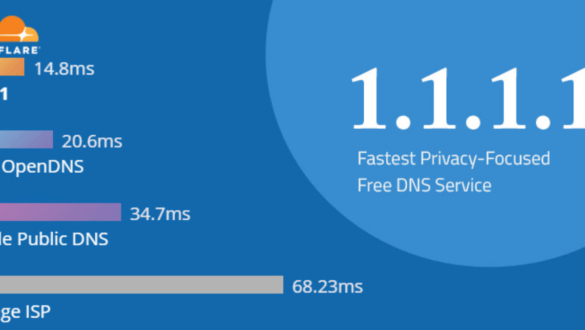
- Enter the desired DNS, such as Google Public DNS (8.8.8.8 and 8.8.4.4) or CloudFlare DNS (1.1.1.1).
By using DNS that is not blocked by the ISP, you can skip site blocking.
4. Using a web proxy
Web proxy is another way to open blocked sites. With a proxy, you connect your device to another server which then accesses the site for you.
How to use a proxy:
- open a web proxy site like proxysite.com or hide.me.
- Enter the URL of the blocked site into the column provided.
- Select a server in another country (for example, the United States or Europe) that does not block the site.
- Click Five or Connect, and the site will open through the proxy server.
5. Using VPN Extension in Chrome
If you are looking for a practical way to open blocked sites without additional applications, you can use VPN extension in chrome. Some of the popular and free VPN extensions on the Chrome Web Store include Tunnelbear, Hotspot Shield, and Browsec.
Steps:
- Open Chrome Web Store.
- Look for a VPN extension like Tunnelbear or Hotspot Shield.
- Click Add to chrome to add it to your browser.
- Enable the VPN in the extension and select the server country that does not block the site.
With a VPN, you can change your virtual location, so that the blocked site will open.
How to Overcome Blocked Sites by Filling in Domain IP on Windows Filehost
In addition to the methods above, there are other, more technical methods to access blocked sites, namely by editing files Host on the Windows operating system. This method allows you to enter the IP address of the blocked site and connect it directly through your computer, without requiring any changes in the browser.
1. Why edit the hosts file?
Filet Hosts In Windows is a simple text file that is used by the operating system to map a domain name to a specific IP address before DNS Online is used. If you want to access a blocked site, you can add entries to this file to “trick” the system to direct your browser directly to the desired IP.
2. How to Edit Hosts Files
Here are the steps to edit the file Hosts In Windows:
- Open Notepad as administrator.
- Look for Notepad In the Start menu, right click, and select Run as administrator.
- Open the hosts file.
- In Notepad, select file > Attentive, then navigate to the directory C:\Windows\System32\Drivers\etc.
- Make sure in the lower right corner, you select All files so the hosts file is visible.
- Click File Hosts and open.
- Add the IP and domain of the site you want to access.
- In the last line, add a new entry in the following format:
123,456,789,123www.situsyangdiblokir.com
Make sure you know the IP address of the blocked site.
- In the last line, add a new entry in the following format:
- Save and close notepad.
- Restart the browser And try to access blocked sites.
3. How to find out the site’s IP address
To find out the IP address of the blocked site, you can use Command Prompt. Here are the steps:
- Open Command Prompt (Type Cmd in the Start menu and press Enter).
- Type the following command:
pingwww.situsyangdiblokir.com
The result will display the IP address of the site.
Enter this IP address into the file Hosts As explained above.
Advantages and Disadvantages of Opening Blocked Sites
Using the methods above can indeed help you access blocked sites, but there are still some advantages and disadvantages.
Advantages
- No additional applications: Most of the above methods do not require installation of new applications, just use the features that exist in Chrome or Windows.
- Faster access: Changing DNS or using the Hosts file can speed up access to a particular site because it is directly connected to the IP without going through a third party server.
- Legal: As long as it is not used for unlawful purposes, these methods are legal and safe to use.
Deficiency
- not always effective: Sometimes, blocked sites use more sophisticated blocking techniques, so the above methods may not always work. Try steps with #ATFP_CLOSE_TRANSLATE_SPAN# DNS CLOUDFLARE If the above method does not work.
- need technical understanding: Editing a hosts file or changing DNS settings requires basic technical understanding, which not everyone may have.
Conclusion
Blocking websites is a reality that is often faced by internet users, whether for security reasons, regulations, or others. However, with a few simple steps such as changing DNS settings, using a proxy, or editing a hosts file, you can open blocked sites without the need for additional applications. The most important thing is to understand the risks and ensure that the methods used remain within the legal corridor.