how to reactivate bca mbanking after changing cellphone
24 June 2024
4 menit membaca
Replacing cellphones is often a necessity in today’s technological era. However, for BCA m-banking users, the re-activation process is often a challenge in itself. This article will discuss how to reactivate bca mbanking after changing cellphone in full and in detail.
steps and how to reactivate mbanking bca after changing cellphones
Here are the steps you need to follow to reactivate BCA m-banking after replacing your cellphone.
1. Download BCA Mobile
The first step that needs to be done is to download the BCA Mobile application on your new cellphone. This application is available on the Google Play Store for Android users and the App Store for iOS users. Make sure you download the official application from PT Bank Central Asia Tbk to avoid fake applications.
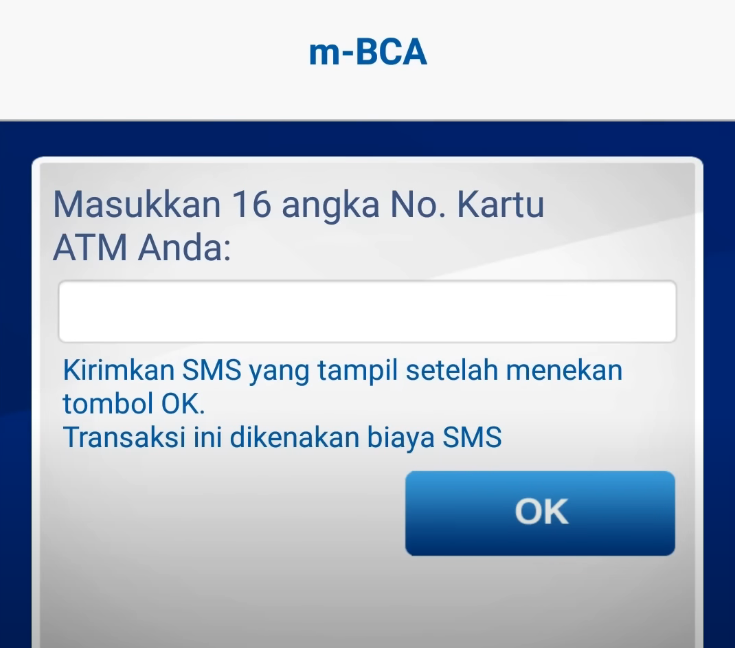
2. Enter the 16-digit ATM card number
After the BCA Mobile application is installed on your cellphone, open the application. You will be asked to enter your 16-digit ATM card number. This number is usually listed on the front of your BCA ATM card.
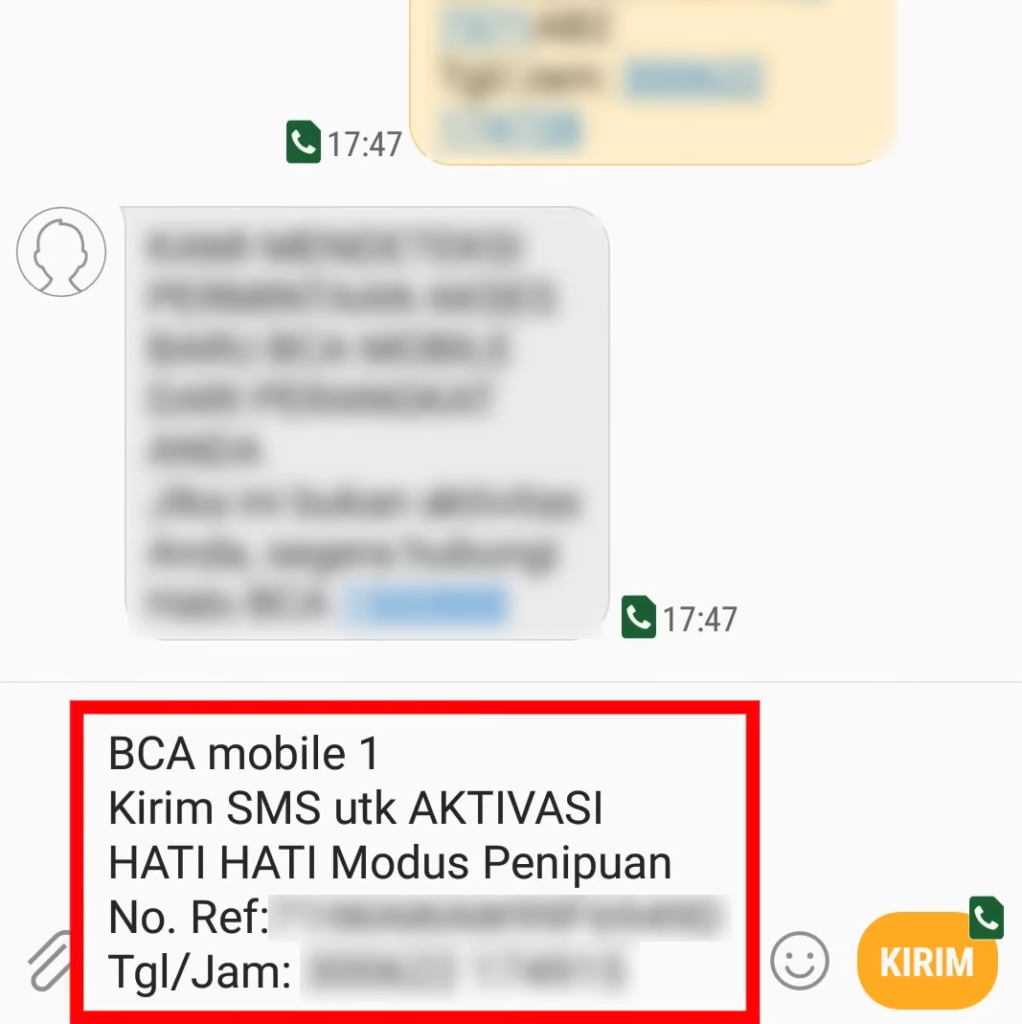
3. Send confirmation SMS
BCA Mobile will direct you to send a confirmation SMS to a number that has been registered previously. This SMS will be sent from the mobile number that you are currently using. Make sure you have enough credit to send this SMS, because the cost of sending SMS will be charged to you.
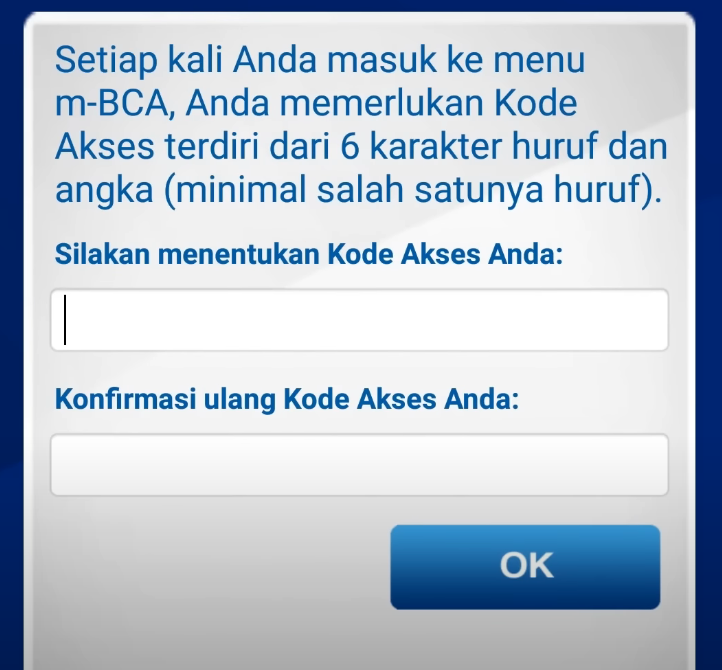
4. Enter the access code
After sending a confirmation SMS, you will receive a reply that directed you to enter the passcode. This access code is the PIN you created when you first activated BCA m-banking. If you forget this access code, you may need to contact BCA Customer Service to reset the PIN.
5. Done
After entering the access code, the M-Banking BCA activation process on your new cellphone is complete. You can now reuse all of BCA’s m-banking features as usual.
Tips and Tricks for Using M-Banking BCA Safely
1. Use a cellphone that is guaranteed to be safe
Make sure the cellphone you are using has a good security system. Don’t forget to always update your operating system and app to the latest version to avoid security vulnerabilities.
When making financial transactions, avoid using public Wi-Fi networks. We recommend using your mobile data network to ensure transaction security.
3. Enable two-step verification
If possible, enable the two-step verification feature for your m-banking account. This will add an extra layer of security by requiring you to enter the verification code sent to your mobile number every time you log in.
4. Keep Access Code Confidential
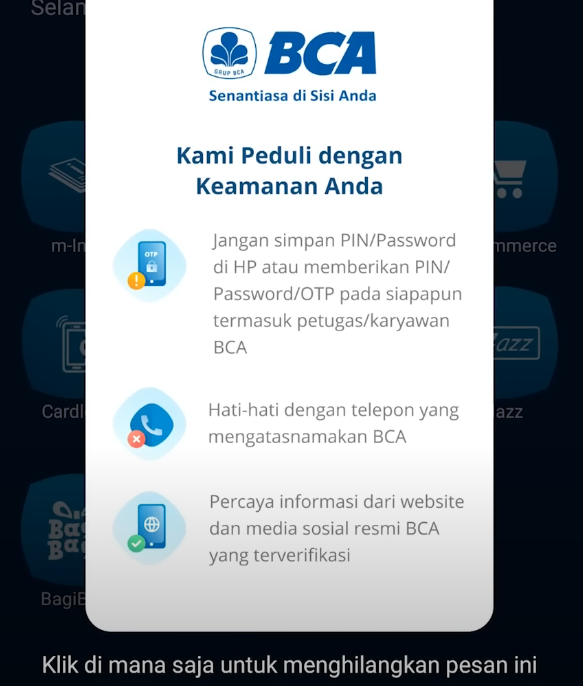
The access code is the primary key to login to your M-Banking account. Never share your access code with anyone, including those who claim to be from BCA.
5. Monitor your transactions regularly
Always check your transactions periodically via m-banking or internet banking. If you find a suspicious transaction, immediately report it to BCA.
Why is it important to reactivate M-Banking BCA?
1. Ease of access
M-Banking BCA allows you to make various financial transactions anytime and anywhere. From money transfers to bill payments, everything can be done with a few finger taps.
2. Transaction security
With advanced encryption technology, M-Banking BCA ensures that all your transactions are safe from cyber threats. In addition, BCA also provides a transaction notification feature that will notify you every time there is activity in your account.
3. Full Features
M-Banking BCA is equipped with various features that make it easier for you to manage finances. Starting from checking balances, account mutations, interbank transfers, to credit purchases and bill payments.
4. Save time
With M-Banking BCA, you no longer need to queue at ATMs or branch offices to make transactions. Everything can be done quickly and efficiently through your cellphone.
conclusion how to reactivate mbanking bca after changing cellphone
Replacing a cellphone does require additional efforts to reactivate BCA’s m-banking service. However, by following the steps above, this process can be done easily and quickly. Remember to always keep your account secure by using a secure cellphone, avoiding public Wi-Fi, and maintaining the confidentiality of the access code.
questions related to how to reactivate mbanking bca after changing cellphones
1. What to do if I forget the BCA m-banking access code?
If you forget the BCA M-Banking access code, you can contact BCA Customer Service at number 1500888 to reset the PIN.
2. Do I need to visit the BCA branch office to reactivate M-Banking after changing my cellphone?
No, you don’t need to visit the BCA branch office. The BCA M-Banking re-activation process can be done directly through the BCA Mobile application on your cellphone.
3. Is there a fee to send a confirmation SMS when reactivating BCA m-banking?
Yes, the cost of sending SMS will be charged to you according to the rate of the cellular operator you use.
4. Can I use M-Banking BCA on more than one cellphone?
No, M-Banking BCA can only be activated on one cellphone. If you want to use m-banking on another cellphone, you must perform the re-activation process.
5. How do I make sure the BCA Mobile application that I download is the official application?
Make sure you download the BCA Mobile application from the Google Play Store for Android users or the App Store for iOS users. Also check the application developer who should be PT Bank Central Asia Tbk.
6. Do I need to disable m-banking on my old cellphone before activating it on a new cellphone?
No need to disable m-banking on old cellphones. You just need to re-activate on your new cellphone.
With complete information and clear steps, you can easily reactivate M-Banking BCA after replacing your cellphone. Make sure to always follow the security tips that have been mentioned to keep your transactions safe and smooth.
LidahTekno.com is supported by Google Adsense advertising to provide content for you.Please consider disabling AdBlocker or adding us to your whitelist so we can continue providing the best technology information and tips.Thank you for your support!