Losing the iPhone is a nightmare for many. Especially if the iPhone is offline. However, Apple has developed several features that allow you to find your device even if it is not connected to the internet. This article will discuss effective ways to find a lost iPhone in offline. We will also provide additional tips to prevent loss and keep your device safe.
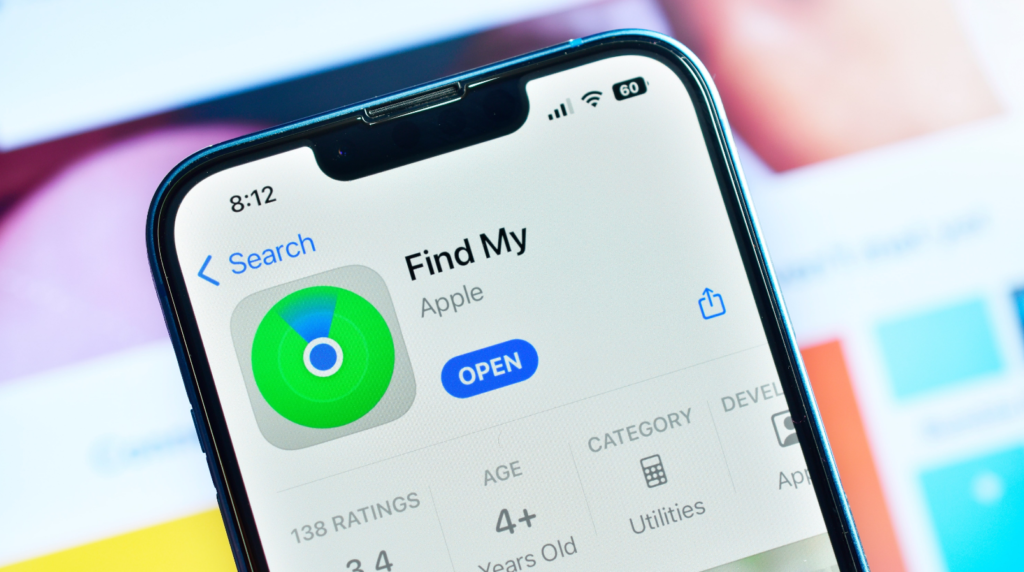
Using the “Find My” feature
Activate “Find My” before losing
Before we go into the details of how to find a lost iPhone, it is important to make sure that you have enabled the “Find My” feature on your device. This feature must be enabled so you can track your iPhone, even when offline.
Steps to enable “Find My”:
Open Arrangement on your iPhone.
Tap your name at the top of the screen.
Elect Find My.
Activate Find My iPhone.
Make sure Send Last Location also activated. This feature will send the last location of your iPhone before the battery runs out.
Tracking iPhone with “Find My”
If your iPhone is lost, you can use another Apple device or access iCloud.com to track your device. Here are the steps:
Using other Apple devices:
Open the application Find My on other Apple devices.
Sign in with the same Apple ID as the lost iPhone.
Select your iPhone from the list of devices to see its location.
Select your iPhone from the menu All Devices to see the location.
take advantage of “Find My Network”
How does “Find My Network” work?
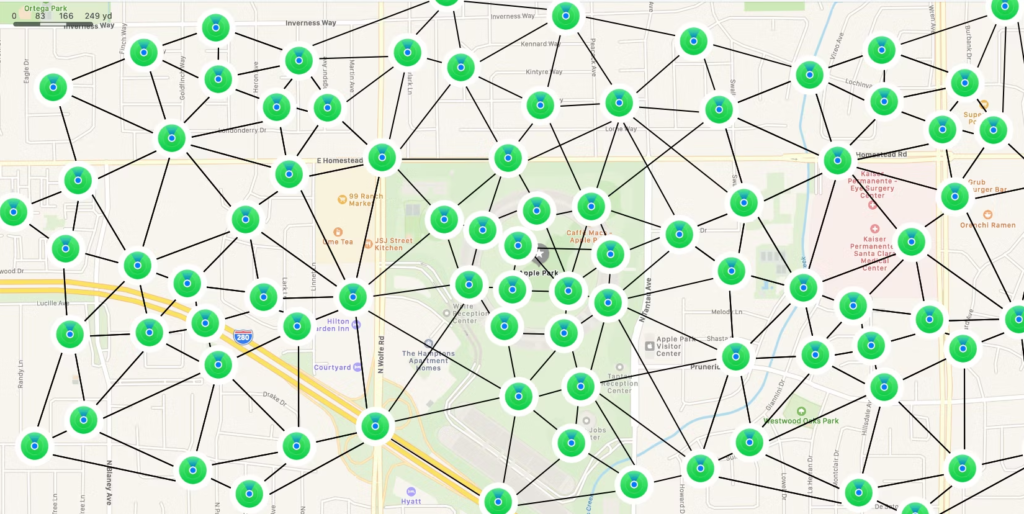
“Find My Network” is a crowdsourced network that utilizes other Apple devices around your lost iPhone. When your iPhone is near another Apple device, it can send a secure Bluetooth signal to the device, which then sends your iPhone location to iCloud. This works even if your iPhone is offline.
Steps to use “Find My Network”:
Make sure “Find My Network” is enabled:
Open Arrangement > Find My > Find My iPhone.
Activate Find My Network.
Open the application Find My on other Apple devices or iCloud.com access.
Follow the same steps as in the previous section to track your iPhone.
Using Lost Mode (Lost Mode)
Enable lost mode
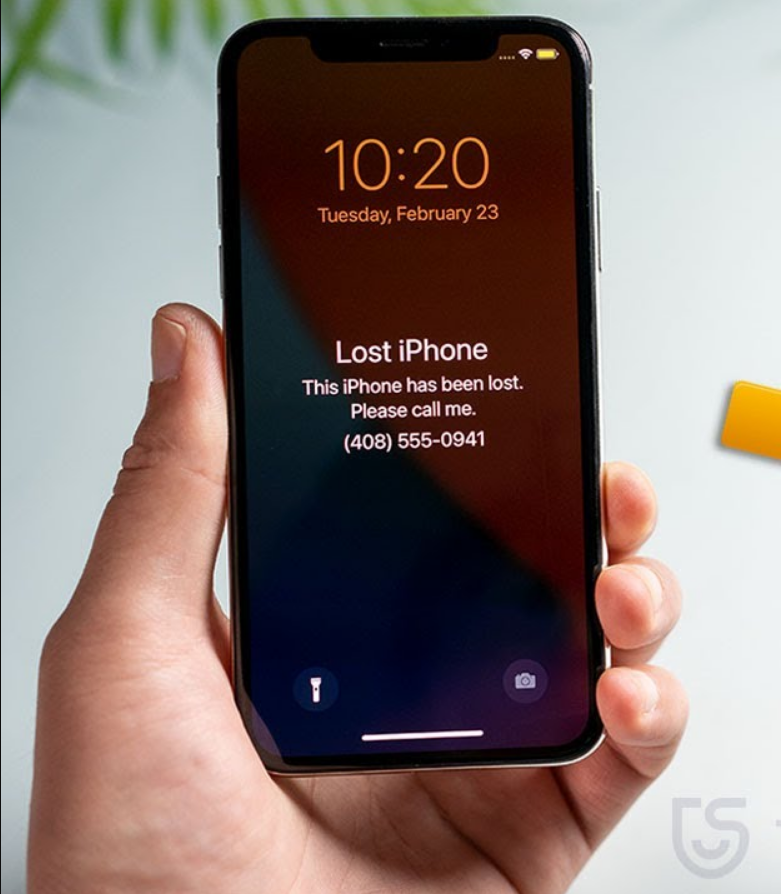
If your iPhone is missing, you can enable Lost Mode to remotely lock your device, display custom messages, and track its location. Lost mode will lock your iPhone with a passcode and disable Apple Pay.
Open the application Find My on other Apple devices or iCloud.com access.
Select your iPhone from the list of devices.
Click Activate in part Lost Mode.
Enter a phone number where you can be reached if your iPhone is found.
Write a message that will be displayed on your lost iPhone screen.
Click Activate.
What happens after the Lost mode is activated?
Once the Lost Mode is enabled, your iPhone will:
Lock the device with a passcode.
Displays the message and phone number you specify.
Track the location of the device.
Disabling Apple Pay to prevent unauthorized transactions.
contact the authorities and cellular operators
report loss to the authorities
If you believe your iPhone is stolen, immediately report this loss to the local authorities. Provide your iPhone serial number to help them identify your device if found.
contact the cellular operator
In addition to reporting to the authorities, you must also contact your mobile operator. They can help you in several ways:
Block your number: prevent misuse of your SIM card.
Tracking devices: Some operators can help track your iPhone using their own services.
Replacing the SIM Card: If you can’t find your iPhone, the operator can provide a new SIM card with the same number.
Tips to prevent future iPhone loss
Using a case with a tracker
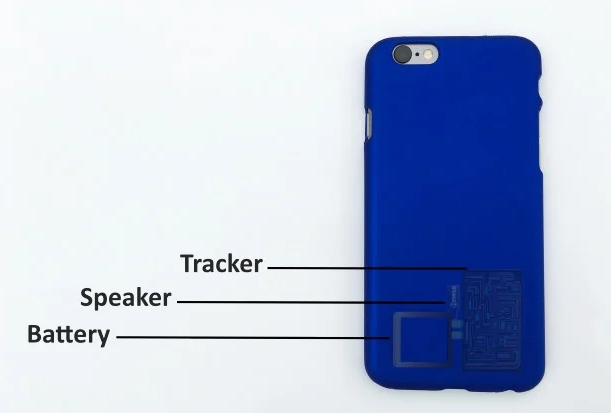
One effective way to prevent losing an iPhone is to use a casing equipped with a tracker. An AirTag-like tracker from Apple can help you find your iPhone if it’s lost.
Enable two-factor authentication
Two-factor authentication adds an additional layer of security for your Apple ID. With this, even if someone tries to access your account, they need a verification code sent to your trusted device.
Steps to enable two-factor authentication:
Open Arrangement > [nama Anda] > Password & Security.
Percussion Turn on Two-Factor Authentication.
Follow the on-screen instructions to complete the process.
Improve iPhone security with strong passcode
Using a strong passcode is a basic step to improve the security of your iPhone. Make sure the passcode you use consists of a combination of numbers, letters, and special characters.
Questions related to how to find a lost iPhone in an offline state
Q: Can I find my iPhone if the battery runs out? A: Yes, if you have activated the feature Send Last Location, your iPhone will send its last location before the battery runs out.
Q: How do I find my iPhone if the SIM card has been revoked? A: You can still use the app Find My and Find My Network To track your iPhone, because this method does not require a SIM card to work.
Q: Is “Find My Network” safe for my privacy? A: Yes, “Find My Network” uses end-to-end encryption, so your location and personal data remain safe and accessible only to you.
Q: Can I lock my iPhone if lost? A: Yes, you can activate Lost Mode (Lost Mode) To lock your device with a passcode remotely.
By following the steps above, you can increase the chances of finding your lost iPhone even in offline. Remember to always take good care of your device and enable all available security features. That way, you can minimize the risk of loss and keep your personal data safe.
LidahTekno.com is supported by Google Adsense advertising to provide content for you.Please consider disabling AdBlocker or adding us to your whitelist so we can continue providing the best technology information and tips.Thank you for your support!