how to remove ads suddenly appear on vivo cellphone

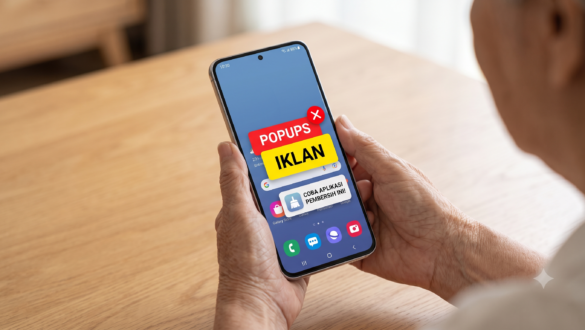
Many Vivo smartphone users face a pretty annoying problem: the sudden appearance of ads on their phone screens. This phenomenon not only interferes with the convenience of use, but can also threaten data privacy and security. This article thoroughly explores various ways to get rid of ads on a Vivo cellphone that suddenly appears, with in-depth analysis and easy-to-follow step-by-step guides. Check out the following reviews to find the best solution so that the experience of using your Vivo HP is optimal and free from unwanted ad interference.
The phenomenon of advertising appears suddenly on Vivo’s cellphone: A Review
Technological developments and the number of third-party applications installed on smart devices are often the main causes of sudden and sudden appearance of advertisements. Vivo users often report that ads appear when they open the application or even when the device is idle. This is of course very disturbing daily activities, ranging from work, study, to entertainment.
Causes of sudden appearance of ads
There are several factors that can cause sudden ads on Vivo HP, including:
- unverified third-party applications
Some applications downloaded from unofficial sources can carry aggressive advertising modules. The application often inserts ads in a way that is difficult to remove and does not explicitly give permission to users. - adware and malware
Malicious programs such as adware or even malware can automatically display ads while the system is running. Adware itself is a type of software that is designed to display ads, while malware can infiltrate the system and change settings that cause sudden ads to appear. - Cache and application data stacked
Over time, cache and application data that accumulate can cause system conflicts. This sometimes results in third-party applications or even operating systems displaying ads randomly. - Unadjusted ad settings
Some users may not be aware that there are settings within a specific system or application that allows ads to appear as part of the free features provided by the developer. Without proper adjustment, these settings can cause ads to appear without control.
The impact of ads that disrupt the user experience
The sudden appearance of advertisements certainly has an impact that cannot be underestimated. Here are some of the impacts that are often experienced by HP Vivo users:
- Decreased device performance
Ads that appear continuously can burden the memory and processor, so that the performance of HP Vivo becomes slow. - Disturbance in daily activities
Ads that interrupt while doing important work or while playing games can interfere with concentration and reduce productivity. - security risk
Some of the ads that appear may be the entry point for malware attacks or personal data theft, thus threatening user privacy. - Higher data consumption
Ads that are constantly loaded can consume more internet data, which of course will have an impact on the user’s monthly bill.
Practical Steps to Overcome Disturbing Ads on Vivo HP
To restore the convenience of using your HP Vivo, there are several practical steps that can be applied. Here is a complete guide on how to get rid of ads on a Vivo cellphone that suddenly appears with an easy and effective method:
App and cache cleaning
One of the first steps that are highly recommended is to clear the cache and application data. This process can help delete temporary files that might trigger the appearance of ads. Here are the steps:
- open settings hp vivo
Go to the settings menu on your Vivo phone, then look for the “Application” or “App Management option.” - Choose a suspicious app
Browse the list of installed apps and identify unknown or recently downloaded apps. - Clear cache and data
Go to App Details and select the option to clear cache and data. Do this process for any suspicious apps. - Restart the device
After clearing the cache, restart your HP Vivo to make sure the changes are implemented properly.
System and app updates
Often, the problem of advertising arises because there are bugs or security holes in the old version of the operating system or application. Make sure your device is always updated:
- Check Operating System Updates
Go to Settings, then select “About Mobile” and look for the “System Update” option. If there are updates available, please update immediately. - Update apps regularly
Make sure all installed applications are in the latest version. It is important to get bug fixes and security improvements. - Use official sources
Always download apps from the Google Play Store or the official Vivo website to reduce the risk of getting apps that insert excessive ads.
Ad settings through third-party apps
For users who feel that the above steps are not enough, the use of third-party applications that function as an ad blocker can be an additional solution:


- Install Ad Blocker App
There are various applications on the Google Play Store that offer ad blocking services. Choose applications that have high ratings and positive reviews from users. - Set privacy and ad settings
Some ad blocker apps also provide more in-depth privacy settings. Make sure you enable all the options that can reduce the appearance of ads. - Application performance monitoring
After installing the ad blocker app, monitor the performance of your HP Vivo. Make sure the application does not interfere with the normal function of the device.
Comparison of Advertising Methods: Comparison Table
The following is a comparison table between some of the methods discussed above, to help you choose the solution that best suits the needs and conditions of your HP Vivo.
| Method | Advantages | Deficiency | Usage Recommendations |
|---|---|---|---|
| Cache and data cleaning | – Easy to do without additional installation – Solve temporary problems | – Doesn’t always remove ads coming from malicious apps | carried out regularly as a first step |
| System and app updates | – Improve device security and stability – Reduces bugs and gaps | – Sometimes requires a stable internet connection and sufficient data quota | Must do when updates are available |
| Ad blocker app | – Effectively block ads in real-time – Provides further control | – may require quite a lot of access permissions – Potential conflict with certain applications | Suitable for users who are often distracted by ads |
| Factory reset | – Restore the device to its initial state – Delete all unwanted data | – resulting in loss of personal data – The process is quite time consuming | used as the last solution if another method fails |
The table above is expected to provide a comprehensive overview of the advantages and disadvantages of each method, so that users can choose the most appropriate solution according to their situation.
Additional Tips and Tricks to Keep Your Vivo Cellphone Smooth
In addition to the main steps above, there are some additional tips that can help keep your HP Vivo performance optimal and free from annoying ads:
Routinely check for installed apps
Keeping a list of applications installed on a Vivo phone is very important to prevent the entry of unwanted applications:
- Periodic audit of applications
Perform routine checks on installed applications. Remove applications that are rarely used or that look suspicious. - Check app permissions
Make sure every installed application has permissions that match its function. Apps requesting irrelevant access should be removed.
Avoiding Suspicious Apps
Avoid downloading apps from untrusted sources. Here are some tips for identifying applications that have the potential to carry aggressive ads:
- Read reviews and ratings
Before downloading, always check the reviews and ratings from other users on the Google Play Store. Applications with low ratings or many negative reviews should be avoided. - Check the application developer
Make sure the downloaded apps come from reputable developers. Information about the developer is usually available on the app download page. - Pay attention to the permissions requested
When installing the app, pay attention to any permissions requested. If the app asks for permission that is not relevant to its function, consider not continuing the installation.
Update security settings
Optimizing security settings on a Vivo phone can also help prevent ads from appearing suddenly:
- Enable security features
Use built-in security features such as malware and antivirus scanners available on your device or download trusted security apps. - Adjust ad settings
Some apps have custom settings to disable ads. Take the time to explore the settings of each application and adjust it so as not to interfere with use. - Backup data regularly
Always back up important data regularly. That way, if an unwanted application interferes with the device, you can easily reset it without losing valuable data.
Advanced Solution: Factory Reset as Last Road
If all the steps above have not given satisfactory results, a factory reset can be the last option to return the Vivo HP to its original condition. However, this step must be taken with care because it will delete all personal data stored on the device.
Factory reset steps
- Back up all data
Be sure to back up all important data, such as contacts, photos, documents, and applications as needed. Use a cloud service or external storage device for backup. - Go to the settings menu
Go to HP Vivo settings and look for the “Backup & Reset” or “System Settings” options. - Select the factory reset option
Follow the instructions on the screen to perform a factory reset. Make sure the device is charged sufficient or connected to a power source. - After reset, do the initial configuration
After the reset process is complete, reset your Vivo HP carefully. Avoid installing unknown applications and update the operating system as well as the application to the latest version.
Considerations before doing a reset
- risk of data loss
Factory reset deletes all data, so it is important to do a backup first. - time required
The reset and reconfiguration process can be time consuming, especially if the data backed up is quite a lot. - Evaluate the application to be installed
After the reset, choose wisely the application to be reinstalled to prevent unwanted ads from reappearing.
Factory resets should be used as a last resort, especially for users who have tried other methods but still have problems with ads appearing suddenly.
Optimizing the Experience of Using Your Vivo HP
After applying the steps above, you need to continue to optimize the use of HP Vivo to stay comfortable and safe from ad interference. Here are some additional steps you can take:
Periodically monitor performance
Perform periodic device performance checks to detect any unusual apps or processes:
- Use a monitoring application
There are third-party applications that can help monitor memory and CPU usage. This application can also provide a warning if there is a suspicious process. - Check data usage
Monitor internet data usage regularly to ensure that no application consumes data excessively.
User education
As a user, it is important to always get the latest information on how to maintain the security and performance of HP Vivo. Follow the news and articles of Trusted Technology, as available at Lidahtekno.com, to get the latest updates about technology and device security.
interaction with the community
Join a community of Vivo users or technology forums. Discussions with fellow users can provide additional information about ways to solve advertising problems and various device maintenance tips.
Case Study: Vivo User Real Experience
To provide a more realistic picture, here is an example of a case study from one of the Vivo users who managed to overcome the problem of ads appearing suddenly:
Background of the problem
A user, let’s call him Andi, experienced significant disturbances due to ads that appeared suddenly when using messaging applications and social media. The ad not only interferes with his activities, but also makes him worried about the security of his personal data.
The steps taken by Andi
- Identify problematic applications
Andi started by checking the list of installed apps and finding some apps downloaded from unofficial sources. - Clear cache and data
It clears cache and data on suspected applications, and restarts the device to ensure new settings are implemented. - Updating operating systems and applications
After that, Andi made an update on the operating system and made sure all the installed applications were in the latest version. - Installing Ad Blocker App
In addition, Andi installed a high-rated ad blocker application from the Google Play Store, which has proven to be effective in reducing the appearance of ads in real-time. - Perform factory reset
Because some ads still appeared, Andi finally decided to do a factory reset. After backing up all the important data, it followed the steps of the factory reset and reset the device carefully.
Final result
After going through a series of these steps, Andi reported that the problem of sudden advertising was significantly reduced. He feels more comfortable using his Vivo cellphone because now it is not disturbed by disturbing advertisements and the security of his personal data is more guaranteed.
Conclusion: Keeping your Vivo HP is ad-free annoying
The sudden appearance of ads on Vivo’s cellphones is indeed a problem that cannot be ignored, especially considering its impact on device performance and data security. By following practical steps such as clearing cache, updating the system, and using ad blocker apps, users can significantly reduce ad interference. In addition, additional tips such as monitoring installed applications and avoiding untrusted sources are also very important to keep the Vivo HP optimal.
Although a factory reset is the last solution, this can be an option for users who have tried various methods but are still having problems. It is important to always back up data before performing a reset and making sure the device is back to the initial settings wisely.
Real experiences such as Andi’s case show that with the right approach, how to get rid of ads on a Vivo cellphone that suddenly appears can be done effectively. In addition, education and interaction with the technology community also helps in dealing with similar problems in the future.
By implementing the above solution, you will not only get the experience of using a more comfortable HP Vivo, but also improve the security and performance of the device as a whole. Don’t let ads interfere with your productivity and privacy—take steps now to secure your device and enjoy smoother and more unwanted smartphone usage.
Summary and next steps
To ensure that your Vivo HP is free from annoying ads, here is a summary of the steps you can apply:
- Perform regular cache cleaning:
Clear suspicious cache and application data to prevent accumulation of files that can trigger ads. - Update operating system and application:
Make sure your device is always updated to the latest version for security fixes and fix bugs. - Use Ad Blocker App:
Install applications that can block ads in real-time and carefully set privacy settings. - Back up data and prepare a factory reset:
If necessary, perform a factory reset after backing up all important data as a last step to address persistent issues. - Monitor and evaluate installed applications:
Regularly check for installed apps and remove unknown or suspicious apps. - Follow the community and update information:
Continue to follow technological developments through reliable sources and discussion with the user community to get the latest solutions.
By applying all the steps above, you will get the experience of using a Vivo cellphone that is more optimal and safe from sudden ad interference. Feel free to start applying the tips above and share your experience with friends and family so that they can also enjoy a cleaner and safer device.
Cover
The presence of sudden advertisements on Vivo’s cellphone can be very disturbing, but with the right knowledge and steps, this problem is not difficult to overcome. This article has comprehensively outlined a variety of methods, from cache cleaning, system updates, ad blocker usage apps, to factory reset as a final solution. By following this guide, you will not only eliminate ad interference, but also improve the security and performance of HP Vivo as a whole.
Remember that keeping your device clean and safe is an investment in everyday comfort and productivity. Always be aware of suspicious applications and make sure to keep the system up to date to avoid future problems. Now, you already know the various ways to get rid of ads on a Vivo cellphone that suddenly appears, so it’s time to take steps and secure your device from today.
Hopefully this information is useful and helps you find the best solution. Don’t forget to share this article with those closest to you who may also experience similar problems. Always follow technology updates on Lidahtekno.com to get the latest news and tips about the world of gadgets and smart devices. Good luck and good luck overcoming the annoying ad problem!