
If You’re Using Windows 11, Turn Off This Hidden Setting Immediately

Have you noticed your PC feeling a bit sluggish lately? Maybe your games aren’t running as smoothly as they used to, your system fan is spinning faster during basic web browsing, or your SSD storage seems to be mysteriously filling up without your permission?
You’re not alone. Millions of Windows 11 users across the US are experiencing random frame drops, background input lag, and unexpectedly high disk usage—and the culprit isn’t a virus or aging computer hardware. It’s a default background feature built right into your operating system that Microsoft enabled out of the box without making much noise.
If you want your PC to run faster, stay cooler, and preserve your SSD’s lifespan, here is the exact hidden setting you need to disable today.
The Silent Resource Hog: What Is Delivery Optimization?
The main culprit hiding deep inside your Windows 11 settings is a background service known as Delivery Optimization (which frequently runs alongside background telemetry services).
In theory, Delivery Optimization is designed with good intentions: it allows your PC to download Windows updates and Microsoft Store apps from local network peers or other computers across the Internet rather than relying solely on Microsoft’s servers. However, in practice, this turns your desktop or laptop into a peer-to-peer (P2P) seeding node without your explicit daily awareness.
How Delivery Optimization Drains Your Hardware
Leaving this setting enabled in its default state can negatively impact your system performance in three major ways:
- Constant SSD Read/Write Cycles: Because your PC is actively indexing and uploading update packages to external peers, your SSD is subjected to continuous background reads and writes. Over time, this unnecessary activity contributes to drive wear and degrades solid-state drive longevity.
- Network Bandwidth & Ping Spikes: If Delivery Optimization decides to upload files while you are playing online games or streaming high-definition content, it consumes your upload bandwidth, leading to sudden high-ping spikes and packet loss.
- Unnecessary CPU & Memory Overhead: The background process continually scans network sockets and file hashes, taking up processor cycles and RAM that should be prioritized for your foreground applications.
How to Turn Off Delivery Optimization in 30 Seconds
Fortunately, Microsoft allows you to disable this feature entirely without breaking your system or stopping essential security updates. Follow these quick steps:
- Press
Windows Key + Ion your keyboard to open the Settings app. - In the left-hand navigation menu, click on Windows Update.
- Scroll down the right panel and select Advanced options.
- Under the Additional options section, click on Delivery Optimization.
- Locate the switch labeled “Allow downloads from other PCs” and toggle it to OFF.
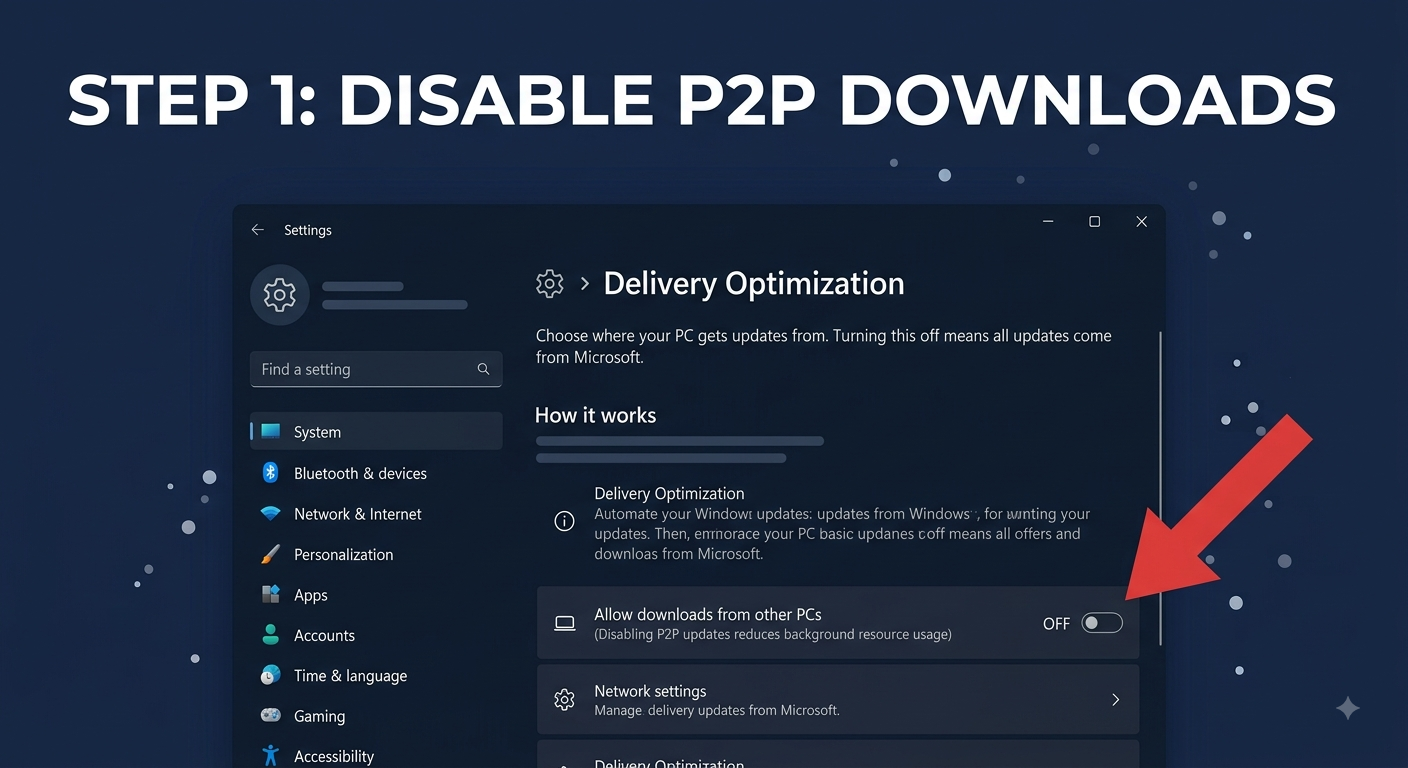

Pro Tip: Once toggled OFF, Windows 11 will only download updates directly from official Microsoft servers, completely cutting off background P2P uploads and background disk reads.


Bonus Tip for Gamers: Disable Core Isolation (Memory Integrity)
If you primarily use your PC for high-performance gaming, video editing, or heavy software processing, there is a second hidden layer dragging down your frame rates: Memory Integrity (a core feature of Virtualization-based Security, or VBS).
While Memory Integrity provides valuable protection against malicious code injection at the kernel level, Microsoft has officially acknowledged that VBS and Memory Integrity can cause performance drops of up to 15% to 20% in demanding games and graphics workloads.
Step-by-Step: Turning Off Memory Integrity
- Click the Start Menu or press
Windows Key + S, then search forCore Isolation. - Click on Core isolation in the search results to open Windows Security.
- Look for the Memory Integrity setting at the top.
- Toggle the switch to OFF.
- Reboot your PC for the changes to take effect.
Should Everyone Turn Off Core Isolation?
If your computer is used mainly in high-risk corporate environments or holds sensitive financial data, keeping Memory Integrity enabled is recommended for maximum protection. However, for home gaming rigs, content creation workstations, and dedicated entertainment setups, disabling it frees up significant CPU headroom and reduces input latency.
Final Verdict: Reclaim Your PC’s Full Speed
Windows 11 includes dozens of modern features, but many default settings are configured with enterprise network distribution in mind rather than peak desktop performance. By spending just two minutes to disable Delivery Optimization and adjusting Memory Integrity, you instantly eliminate unwanted background tasks, keep your SSD running efficiently, and restore your system’s full responsiveness.
Did you notice an instant performance boost or smoother gameplay after tweaking these settings? Share your experience in the comments below!


