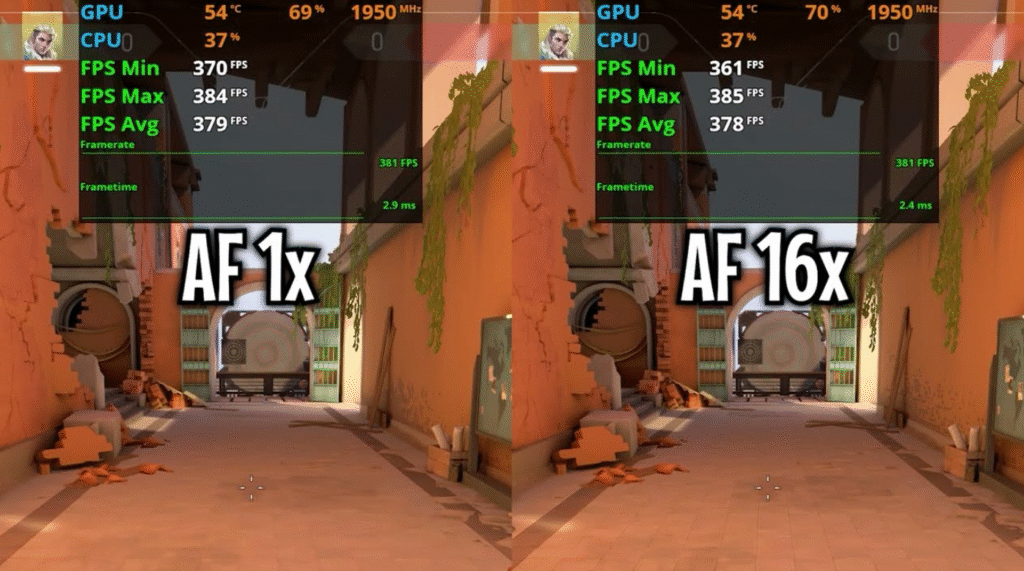
Anisotropic Filtering: The Secret Trick to Make the Game Look Much Sharper!
18 November 2025
6 menit membaca
The visuals of the game feel blurry when you see the road surface, dungeon floor, or grass in the distance? Many players think the problem comes from low resolution or poor texture quality. However, in many cases, the cause is Anisotropic filtering which has not been optimized.
This feature is often overlooked because it is considered technical or “unimportant”, even though it has a very large role in increasing the clarity of the texture at an angled angle. This article discusses starting from the notion of anisotropic filtering, how it works, comparisons with other types of filters, how to activate it on NVIDIA and AMD, performance impact, to the best setting recommendations – equipped with tables, concise points, and FAQ.
What is anisotropic filtering?
Simply put, anisotropic filtering is a Texture filtering In 3D graphics that aim to sharpen the appearance of the surface that looks tilted to the camera. For example, when you walk on a long road in the game, the texture will look more blurry over the distance. This feature is in charge of maintaining its sharpness.
According to technical explanations from several GPU manufacturers such as Intel and AMD, anisotropic filtering works by taking more and more focused samples of texture, different from old methods such as bilinear and trilinear whose sampling is uniform regardless of surface direction.
with settings up to 16X Anisotropic Filtering, surface details can appear much sharper without excessive blur effect.
Why is anisotropic filtering important?
Some of the main reasons:
Sharpen the texture when viewed from an extreme angle.
provide a visual enhancement consistent in many modern games.
The impact of relatively small performance on the new generation GPU.
According to the analysis of Gamersnexus in its graphic review series, the visual quality improvement of anisotropic filtering is greater than many other features that are actually heavy in performance such as ambient occlusion or certain ray tracing.
How Anisotropic Filtering Works (Easy to Understand Version)
Modern games show textures through a process called Mipmapping, i.e. making a lower resolution version of the texture for a distant object. However, when the surface is at an inclined angle, the standard mipmap makes the texture quickly blurred.
This is where anisotropic filtering works.
How it works concisely:
The GPU detects the surface orientation to the camera.
If the surface is oblique, the GPU takes an additional texture sample.
Samples were taken more in directions requiring detail (anisotropic).
The end result is a texture that remains sharp even from an extreme angle.
This technology is supported in almost all modern graphics APIs including OpenGL through extensions gl_ext_texture_filter_anisotropic and DirectX.
Comparison with Bilinear and Trilinear Filtering
Many users only know three types of filtering: bilinear, trilinear, and anisotropic filtering. The difference between the three is quite significant.
Short comparison table
filtering type
Visual quality
Sharpness consistency
Performance Impact
suitable for
Bilinear
Low
Opaque at distance and angle
very light
GPU is very weak
trilinear
Medium
slightly better
Light
Old Game / Low Settings
Anisotropic 4x–16x
High
Very good
light–moderate
All modern games
According to an explanation from Wikipedia and GPU Brief products, Anisotropic Filtering is the only technique that keeps the texture sharp at italic angles.
Anisotropic filtering settings: 2x, 4x, 8x, or 16x?
The anisotropic filtering setting is usually a level of detail such as: 2x, 4x, 8x, 16x.
The bigger the number:
the sharper the texture
The more samples taken
less risk of blur
slightly increased performance impact
But visual improvement from 8x to 16x is usually not as dramatic as 2x to 4x. This is called Diminishing returns.
According to the PC gamer community as well as daily reviews such as Techspot and GPU manufacturer recommendations, 16X Anisotropic Filtering is a standard safe setting for almost all modern PCs.
how to activate anisotropic filtering in nvidia
NVIDIA users can set this through NVIDIA Control Panel.
Steps:
Open NVIDIA Control Panel.
Go to Manage 3D Settings.
Look for options Anisotropic filtering.
Select Numbers 4x–16x, or “application-controlled” if you want to follow the game settings.
Click Apply.
According to the GeForce Support report, forcing anisotropic filtering from drivers is usually safe, but certain games may ignore it depending on the graphics engine used.
how to activate anisotropic filtering in amd radeon
Similar to NVIDIA, AMD users can use Radeon Software.
Steps:
Open AMD Radeon Settings.
Elect Graphics.
Look for options Anisotropic filtering.
Set in mode Override Or use 2x–16x.
Apply changes.
AMD states that anisotropic filtering in override mode will replace the game’s default settings, except for games that use certain APIs that limit override.
Performance Impact: Is AF Heavy?
One of the reasons many gamers turn off anisotropic filtering is because it is considered “loading the GPU”. In fact, this is not entirely true.
Performance facts:
The impact of anisotropic filtering is usually small, especially in modern GPUs.
The use of VRAM has also increased very little.
The new performance feels down when using the old mobile GPU or other extreme settings are active at the same time.
According to Kompas Tekno and the hardware reviews they summarize, graphic features such as Shadow Quality, Ambient Occlusion, and post-processing effects actually have a much bigger impact on FPS than Anisotropic Filtering.
When should you use 16x settings?
You should use 16X Anisotropic Filtering When:
Play open-world games with many road or grass surfaces.
using a high resolution monitor.
Want optimum visual quality without heavy load.
Your GPU is the latest generation (RTX/ARC/Radeon latest series).
On gaming laptops, you can still use 4x–8x to maintain a balance of performance and visuals.
Usage in Mobile GPU & Light device
On smartphones or tablets, anisotropic filtering is generally still available but is often limited by drivers or game engines.
According to several mobile graphics analysis reports as discussed by CNN Tech Section, many mobile games lower the level of anisotropic filtering to maintain performance stability, although the effect makes the texture of the road or floor appear blurry.
Summary of advantages and disadvantages
Here is a list of important points regarding Anisotropic Filtering:
Advantages
Improves the clarity of the long-distance texture.
Does not affect the performance as much as other heavy graphics features.
Become the standard in almost all modern games.
The difference in quality is very visible on the sloping surface.
Deficiency
can still lower FPS on a very old GPU or mobile device.
The difference between 8x vs 16x is sometimes not very significant.
Some games ignore the override of the driver.
Recommended settings for general users
If you are confused about choosing anisotropic filtering settings, here are simple recommendations:
device type
AF recommendations
High-end gaming PC (RTX/ARC/Radeon latest)
16x
Medium PC
8x–16x
gaming laptop
4x–8x
Old low-end PC
2x–4x
Mobile GPU
Use game defaults
This recommendation is consistent with the results of testing the hardware community such as Gamersnexus and Techspot.
FAQ (frequently asked questions)
1. Is anisotropic filtering more important than anti-aliasing?
The two functions are different. Anti-aliasing smoothes the edges of the object, while anisotropic filtering sharpens the slanted texture. Both are equally important.
2. Do you always have to use 16x?
Not mandatory, but safe for most modern GPUs. If the FPS goes down, drop it to 8x or 4x.
3. Why is anisotropic filtering inactive after I set it in the driver?
Some game engines lock the texture filtering settings and ignore the override of the driver.
4. What is the difference between anisotropic vs trilinear?
Trilinear only increases the mipmap transition, but does not maintain sharpness on the sloping surface. The result remains blurred at an extreme angle.
5. Does anisotropic filtering affect VR or ultrawide monitor?
Yes, the wider the FOV and the resolution, the more you feel the benefits of anisotropic filtering.
Conclusion
Anisotropic Filtering is one of the graphical features that gives the most visual quality difference with the smallest performance impact. Starting from 4x to 16x, the enhancement of texture details is very visible especially on sloping surfaces such as roads, floors, grass, or open-world objects.
Based on technical explanations from GPU manufacturers such as Intel, AMD, as well as practical analysis of media such as Kompas Tekno and CNN Tech, Anisotropic Filtering has proven to be a feasible feature to always be activated in almost all conditions.
If you want sharper visual quality without sacrificing massive FPS, Anisotropic filtering is one of the best settings that you can maximize right now.
LidahTekno.com is supported by Google Adsense advertising to provide content for you.Please consider disabling AdBlocker or adding us to your whitelist so we can continue providing the best technology information and tips.Thank you for your support!