How to Overcome Glitch Laptop Screen

A glitch laptop screen can be a very annoying problem, especially when you are working or enjoying entertainment. Glitch on the screen can be caused by various factors, ranging from hardware problems to software. In this article, we will discuss in detail how to solve the problem of a glitch laptop screen so that you can return to using a laptop normally.
1. Understand the causes of Glitch laptop screens
Laptop screens experiencing glitch can be caused by various factors. Here are some common causes:
a. The latest graphics card driver
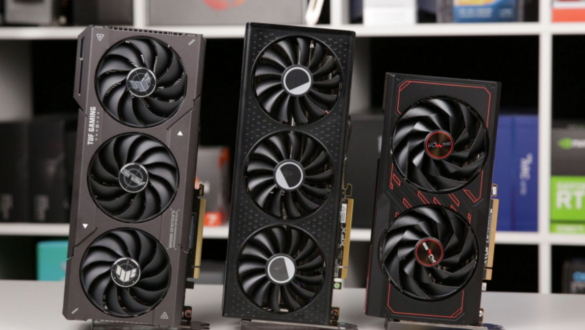
The latest graphics card drivers are often the main cause of glitch on the laptop screen. This driver is responsible for controlling how graphic hardware communicates with the operating system.
b. overheating
Overheating laptops can cause various problems, including glitches on the screen. Overheating can be caused by clogged ventilation, a broken fan, or excessive use for a long time.
c. Flexible cable is broken
The flexible cable that connects the screen to the motherboard can be damaged due to frequent use, especially if the laptop is often opened and closed.
d. software problem
A problematic application or operating system can also cause a glitch laptop screen. This can happen if there is a bug in the software or if there is a conflict between the applications.
e. Hardware damage
Damage to hardware components such as graphics cards or the screen itself can also cause glitch.
2. How to Overcome Glitch Laptop Screen
After understanding some common causes, here are the steps you can take to deal with a glitch laptop screen:


a. Updating graphics card drivers
The first step you need to do is update the graphics card driver. Here’s how:
- Check Graphic Card Model: Find out the graphics card model used on your laptop. You can see it in the Device Manager in the Display Adapters section.
- Visit the official website: Visit the official website of your graphics card manufacturer (such as NVIDIA or AMD) and download the latest drivers according to your graphics card model.
- Install the latest drivers: Follow the installation instructions provided to install the latest drivers. When you’re done, restart your laptop and check if the glitch problem is resolved.
b. Overcoming overheating
To overcome overheating, you can do the following:
- Clean ventilation and fan: Make sure your laptop vents and fans are clean of dust and dirt. You can use compressed air cans to clean it.
- Use a cooling pad: Use a cooling pad to help keep the laptop temperature low.
- Avoid overuse: If your laptop is often used for heavy tasks, give a pause so that the laptop can cool down.
c. Checking and replacing flexible cables
If you suspect a broken flex cable is the cause of the glitch, you can check it with the following steps:
- Open the laptop case: Open the laptop case carefully and check the condition of the flexible cable that connects the screen to the motherboard.
- Replace the damaged cable: If the cable looks damaged or worn, you need to replace it with a new one. You can buy a flexible cable that suits your laptop model.
d. Fix software problems
For problems caused by the software, you can perform the following steps:
- Operating system updates: Make sure your operating system is always updated to the latest version. Updates often contain bug fixes that can solve the glitch problem.
- Remove problematic apps: If you identify a specific application that causes glitch, try deleting the app and check if the problem is resolved.
- Scan malware: Perform malware scanning using a trusted antivirus to ensure no malware causes glitch.
e. Repair or replace hardware
If the Glitch laptop screen problem is caused by hardware damage, it is best to take the laptop to a professional technician for repair. They will be able to diagnose the problem more deeply and provide the right solution.
3. Additional Tips to Prevent Glitch Laptop Screen
In addition to the steps above, there are some additional tips that you can apply to prevent future glitch laptop screens:
a. Keep the laptop temperature
Always keep your laptop temperature low by regularly cleaning the ventilation and using a cooling pad.
b. Update drivers regularly
Update the hardware drivers regularly to make sure everything is working properly.
c. Avoid running multiple heavy apps at once
Don’t run too many heavy applications at the same time, especially if your laptop has limited specifications.
d. Use your laptop with care
Avoid slamming or dropping the laptop, as this can damage internal components such as a flexible cable.
e. Use antivirus
Always use antivirus to protect your laptop from malware that can cause software problems.
FAQ
1. What causes the Glitch laptop screen?
Glitch laptop screens can be caused by non-new graphics card drivers, overheating, faulty flex cables, software problems, or hardware damage.
2. How to update the graphics card driver?
To update the graphics card driver, check your graphics card model, visit the graphics card manufacturer’s official website, download the latest drivers, and follow the installation instructions.
3. Can overheating cause a glitch laptop screen?
Yes, overheating can cause the laptop screen to glitch because the temperature is too high can affect the performance of the hardware.
4. What to do if the flexible cable is damaged?
If the flex cable is damaged, you need to open the laptop case and replace it with a new one. If you are not sure, you should take the laptop to a professional technician.
5. How to prevent future glitch laptop screens?
To prevent the laptop screen from Glitch, keep the laptop temperature low, update the driver regularly, avoid running many heavy applications at once, use the laptop carefully, and use an antivirus.
By following the guidelines above, you are expected to be able to solve the problem of a glitch laptop screen effectively and prevent it from happening in the future. Feel free to consult a professional technician if you find it difficult to fix this problem.