Laptop Restarts Alone: Causes and Solutions

having problems with Laptop that keeps restarting itself can be very annoying. This not only hinders productivity, but can also be a sign of serious hardware or software problems. This article will discuss the cause of the laptop restarting itself And solutions that you can apply to overcome them.
the cause of the laptop restarting itself
- Overheating (excess heat) An overheating laptop can cause the system to restart automatically to prevent further damage. This is usually caused by:
- dust and dirt: accumulation of dust in the fan and ventilation.
- Ineffective thermal paste: the thermal paste that dries or is not applied properly.
- blocked ventilation: Put the laptop on an uneven surface or cover the ventilation.
- RAM problems (memory) Troubled RAM can cause the system to restart suddenly. This can be caused by:
- Incompatible RAM: Using the type of RAM that is not compatible with the motherboard.
- RAM is broken: Memory with physical or electrical damage.
- problematic driver The obsolete or incompatible driver may cause conflict with the operating system, resulting in a restart. Make sure all drivers are updated regularly.
- virus or malware Malware infection can damage the operating system and cause various problems, including automatic restarts. Using a trusted antivirus software is a good preventive measure.
- Problems with the operating system Errors in an operating system such as a corrupt system file can trigger an automatic restart. Repairs can be made by doing System Restore or Reinstall OS.
- Battery or power adapter problem A problematic power adapter or battery can also be the cause of the laptop restarting itself. Try using another adapter or battery to confirm the source of the problem.
How to Overcome the Laptop Restarts Alone
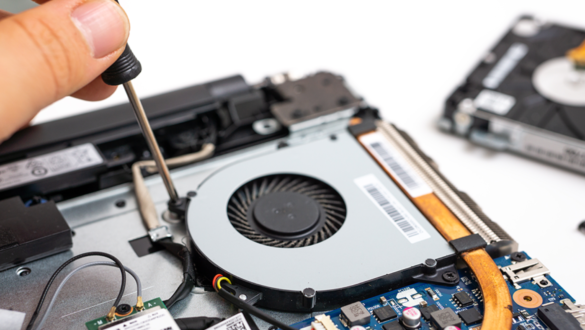
- Cleaning the laptop regularly Cleaning dust from fans and ventilation is very important to prevent overheating. Use an air compressor or a special laptop cleaning tool to keep the inside of the laptop clean.
- Check and replace thermal paste If the thermal paste is no longer effective, you need to replace it. Open your laptop (if you believe and know how) and apply new thermal paste to the CPU.
- Checking RAM condition Check your RAM by running memtest86 or other diagnostic software. If damage is found, replace the problematic RAM immediately.
- Update driver Make sure all hardware drivers are updated to the latest version. You can download the latest drivers from the official website of the manufacturer of the laptop or related components.
- using a trusted antivirus Perform a thorough scan with a trusted antivirus to ensure no malware infects your system. Some of the recommended antiviruses are Kaspersky, Norton, or Bitdefender.
- Repair the operating system
- System Restore: Return the system to the restore point before the problem starts to occur.
- Reinstall OS: If the problem persists, reinstalling the operating system could be the final solution.
- Replacing the power adapter or battery If the problem comes from the power adapter or battery, consider replacing it. Use the original adapter or battery recommended by your laptop manufacturer.
Preventive measures
- using a cooling pad The cooling pad helps keep the laptop temperature low, especially when used for heavy-duty such as gaming or video rendering.
- Ensure open ventilation Always place the laptop on a hard and flat surface so that the ventilation is not blocked.
- Regularly updating systems and drivers Schedule regular system and driver updates to prevent compatibility issues.
- using optimization software use software such as CCleaner To clean temporary files and unnecessary registry, which can help maintain optimal system performance.
FAQ (Frequently Asked Questions)
1. Why does my laptop keep restarting? Common causes of the laptop restart itself include overheating, RAM problems, problematic drivers, malware infections, operating system problems, or power problems.
2. How do I know the cause of my laptop restarting itself? You can check by monitoring the laptop temperature, running RAM diagnostics, updating drivers, using antivirus, and checking the power adapter.
3. What to do if the laptop restarts due to overheating? Remove dust from ventilation and fans, replace the thermal paste if necessary, and use a cooling pad to help keep the temperature low.
4. How to fix the problematic operating system? DO System Restore to the previous restore point or reinstall the operating system if needed.
5. Can using an antivirus prevent the laptop from restarting itself? Yes, antivirus can detect and remove malware that can cause the laptop to restart itself.
6. Why is a driver update important? Updated drivers ensure the hardware is functioning properly and is compatible with the operating system, thus preventing problems that could cause restart.
By understanding the causes and solutions above, you can solve the problem Laptop that keeps restarting itself more effectively. Also make sure to take precautions to prevent similar problems from happening in the future.