PStorage devices such as SSDs (Solid State Drive) have become the main choice because of their speed and reliability. However, it is not uncommon for users to encounter problems where the SSD is unreadable in Disk Management, a Windows built-in utility that functions to manage partitions and volumes. This problem can be caused by various factors, ranging from the wrong configuration, obsolete drivers, to hardware problems. This article is here to discuss in detail the causes, solutions, and prevention tips so that the SSD continues to function optimally.
Get to know SSD and Disk Management Functions
What is SSD?
SSD (Solid State Drive) is a data storage device that uses flash memory to store data permanently. In contrast to conventional hard drives (HDD) that use magnetic disks, SSDs have advantages in terms of read/write speed, shock resistance, and more stable performance. This is what makes it widely chosen for modern computing purposes, both for personal and professional use.
The Role of Disk Management
Disk Management is a Windows built-in disk management utility that allows users to create, delete, resize, and format partitions on a storage device. With Disk Management, users can also identify problems such as uninitialized partitions, drive letter conflicts, and unreadable storage devices. When an SSD does not appear in Disk Management, this is often a sign of a problem with the configuration or the hardware itself.
Causes of Unread SSD in Disk Management
SSD problems that are not read in Disk Management can be caused by various factors. Here are some common causes to note:
1. Connectivity problems
Damaged SATA/Power Cables: Unstable connections or worn cables can cause the SSD to not get enough power or signal.
Troubled SATA port: Sometimes, the port on the motherboard used to connect the SSD may be damaged or not compatible.
2. Driver and Firmware Obsolete
Unupdated drivers: Older or inappropriate storage drivers may result in the SSD not being detected by the operating system.
Unupdated SSD firmware: SSD manufacturers periodically release firmware updates to improve performance and compatibility. Older firmware versions can cause compatibility issues with the operating system.
3. BIOS/UEFI configuration
Incorrect BIOS settings: Some settings in the BIOS or UEFI, such as AHCI or LEGacy mode, can affect the way the computer detects storage devices.
Improper boot priority: If the SSD has not been set as a boot device or the priority is less, the system may not recognize the SSD optimally.
4. Partition problem or disk format
Disk has not been initialized: A new uninitialized SSD will not appear in Disk Management.
Broken partition: Errors when formatting or changing partitions can make the SSD unreadable.
5. Hardware Conflict
SSD with physical damage: Internal damage to the SSD can make it unable to function properly.
Conflict with other devices: Sometimes, other hardware connected to the computer can cause conflicts that affect SSD detection.
General Solutions to Overcome Unread SSD
If you encounter an issue where the SSD is unreadable in Disk Management, here are some steps you can try:
1. Check physical connection
Check cables and ports: Make sure the SATA cable and the power cable are in good condition and installed properly. Try to replace the SATA cable or port to test if the problem lies here.
Make sure the SSD is neatly installed: Remove and reinstall the SSD to make sure there are no loose connections.
2. Update drivers and firmware
Driver update: Visit the official website of the motherboard manufacturer or SSD and download the latest drivers to ensure compatibility with the operating system.
Update Firmware: Check the firmware update on the SSD manufacturer’s site and make an update if it is available. Firmware updates often bring fixes to bugs and compatibility improvements.
3. Check BIOS/UEFI settings
Check SATA mode: Make sure the SATA mode in BIOS/UEFI is already set to AHCI, which is recommended for SSD.
Set Boot Priority: Make sure the SSD is set as the main boot device if it is used to run the operating system.
Disk initialization: If the SSD is new, go to Disk Management and initialize the disk by selecting the MBR (Master Boot Record) or GPT (GUID Partition Table) format as needed.
Reformat: If the SSD partition is corrupted, reformat it after backing up important data (if possible).
5. Use third party software
If the above steps have not been successful, you can try using third-party disk management software that offers partition repair and recovery features. Some of these software have a more friendly interface and can identify problems that are not detected by Windows’ built-in disk management.
Advanced Solution Using Command Prompt (Diskpart)
For advanced users, the Command Prompt with the DISKPART utility can be an effective solution to the problem of unreadable SSDs. Here are the short steps using Diskpart:
Open Command Prompt with administrator rights: Right-click on the Start menu, select “Command Prompt (Admin)” or “Windows PowerShell (Admin)”.
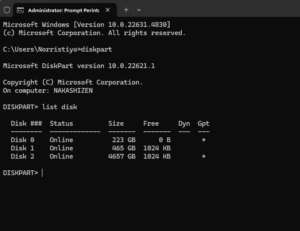
Run Diskpart: Type Diskpart and press enter.
Show disk list: Type list disk to display a list of connected disks. If the SSD appears in the list, the system detects it even if it doesn’t appear in Disk Management.
Select the disk in question: Type Select disk x (replace X with the appropriate SSD number).
Check disk status: Use the command Disc Details to get more information. If the disk has not been initialized, you can use the command CLEAN (Remember that this command will delete all data on the SSD) and then create a new partition.
Although Diskpart is a powerful tool, caution is needed to avoid fatal errors that can permanently delete data. Be sure to back up important data before performing risky commands.
Third-party software comparison table to solve disk problems
To help you determine the choice of solutions, here is a comparison table of some popular disk management software. These software not only help in overcoming unreadable SSDs, but also offer other features such as partition recovery and volume management.
Software name
Advantages
Deficiency
MiniTool Partition Wizard
– User-friendly interface
– Lots of improvement features
– Free version limited features compared to paid version
EaseUS Partition Master
– Easy to use
– Support OS and partition migration
– the update process is sometimes slow
– Advanced features require a license
Aomei Partition Assistant
– Full features for disk management
– User-friendly display
– Less optimal free features for advanced users
Paragon Partition Manager
– Stable and reliable
– Comprehensive features for recovery
– The interface is a bit outdated
– the price is quite expensive
Diskpart (Command Prompt)
– Windows default, without additional installation
– Effective for deep troubleshooting
– Requires higher technical expertise
– Risk of data deletion if not careful
The table above is expected to help you in choosing the software that suits the needs of SSD repairs that are not read in Disk Management.
Prevention Tips To Keep SSD Optimal
In addition to addressing the problem when the SSD is unreadable, there are several precautions that can be taken to keep your SSD working properly:
1. Routinely update drivers and firmware
Make sure the SSD hardware and firmware drivers are always in the latest version. Periodic updates can address bugs and improve compatibility with the latest operating systems.
2. Check connectivity periodically
Perform routine checks on SATA cables and connectors. Make sure there is no dirt or physical damage that can interfere with the connection.
3. Use UPS (Uninterruptible Power Supply)
Electric power fluctuations can damage the internal components of the SSD. By using the UPS, you can protect the device from a sudden surge in electricity.
4. Back-up data periodically
Always keep a backup copy of important data. Although prevention efforts have been made, unexpected damage can occur. With data backup, you avoid losing important data.
5. Avoid overheating
Make sure your SSD is well ventilated. Overheating can result in decreased performance and even long-term damage to the SSD.
Another solution: using diagnostic software
In addition to using Disk Management and DiskPart, some diagnostic software can also help identify SSD problems in depth. Software such as CrystalDiskinfo and HD Tune can display SSD health information, operating temperature, and S.M.A.R.T indicators. (self-monitoring, analysis, and reporting technology). By knowing the health condition of the SSD, you can more quickly detect any damage or potential failure.
Steps to use CrystalDiskinfo:
Download and install: Download CrystalDiskinfo from the official website and install it on your computer.
Run the software: Open the application to see the health status of the SSD.
Data Analysis: Check the S.M.A.R.T. indicator values. and operating temperature. If there is an abnormal value, immediately do a data backup and consider replacing the SSD.
This diagnostic software is very useful especially for professional users who need optimal performance from their storage devices.
Why does the SSD problem unreadable need to be addressed immediately?
Unreadable SSD problems in Disk Management not only interfere with productivity, but can also indicate a more serious problem with the hardware or operating system. Here are some reasons why handling this problem is so important:
Data security: A problematic SSD can be a sign of a hardware failure. By identifying the problem early, you can back up important data before any more severe damage occurs.
Productivity: For professionals and business people, downtime due to storage problems can disrupt daily operations. A quick and precise solution will minimize unproductive time.
System Efficiency: Update drivers, firmware, and BIOS settings not only solves the problem of SSD detection, but also improves overall system performance.
systematic problem solving steps
To ensure that each handling step is carried out systematically, here is a summary of the steps you can follow:
Physical check:
Make sure the SATA cable and the power cable are properly attached.
Try changing the cable or using a different SATA port.
Driver and firmware update:
Visit the official website of SSD manufacturers and motherboards.
Update the storage driver and SSD firmware.
BIOS/UEFI settings check:
Go to BIOS/UEFI and check SATA mode (recommended to AHCI).
Set the boot priority so that the SSD is detected as the main boot device.
Initialization and reformat:
Open Disk Management and initialize the new disk if needed.
Create a new partition and reformat the SSD if there is damage to the partition structure.
using diagnostic software:
Use CrystalDiskinfo or HD Tune to check the health of your SSD.
Perform data backup if there are signs of damage to the SSD.
Advanced solution with Diskpart:
Run the Diskpart command via the Command Prompt (Admin).
Select the problem disk and check its status using the Detail command.
Challenges and solutions in the era of modern technology
In the midst of the rapid development of technology, problems such as “Unread SSD in Disk Management” are challenges that need to be faced by users. Storage technology continues to evolve with various innovations to improve reliability and performance. In this situation, education about maintenance and troubleshooting is the main key to ensuring the hardware is functioning optimally.
Experts also suggest that every user relies not only on instant solutions, but also understands the basics of storage technology. An in-depth understanding of components such as SSDs, drivers, firmware, and BIOS settings will help users not to panic and be able to take appropriate corrective steps.
Benefits of implementing integrated solutions
By implementing integrated solutions steps, users can not only solve the problem of “unread SSD in Disk Management”, but also get long-term benefits in the form of:
Better system stability: Routine updates and maintenance help maintain system stability, so users don’t need to experience downtime frequently.
Optimal performance: A well-functioning SSD will improve boot speed, application loading, and overall system performance.
Data security: By performing periodic backups and checks, the risk of data loss due to hardware damage can be minimized.
Summary and conclusion
The problem of unread SSD in Disk Management can indeed be a scourge for many users, especially for those who rely on high performance for work and daily activities. However, with a deep understanding of the causes and solutions described above, each user can take the right steps to address this problem.
In short, the steps that need to be taken include:
Check the physical connection and make sure the cable and port are in good condition.
Update drivers and firmware to maintain compatibility with the operating system.
Check and adjust the BIOS/UEFI settings so that the SSD can be detected optimally.
Initialize or reformat disks that have not been initialized or have been damaged on the partition.
Using third-party software or diagnostic utilities to help identify problems in depth.
Using DiskPart for advanced users who need a solution via Command Prompt.
In addition, the application of prevention tips such as routine data backup, connectivity checks, and temperature surveillance of SSDs can help prevent the same problems from occurring in the future.
In the face of very dynamic technological developments, education and understanding of hardware such as SSD is the key so that we can maximize the performance of computer systems. The steps above not only help to overcome the current problem, but also prepare you to face the technological challenges in the future.
Cover
This article is expected to provide a comprehensive guide for users who are experiencing the problem of “Unread SSD in Disk Management”. With a systematic approach, the right solution, and useful prevention tips, you can keep the storage device functioning optimally and minimize unwanted interference.
For those of you who are still having problems or have further questions, don’t hesitate to consult a professional technician or visit a technology forum that can provide additional solutions. Always update your knowledge along with the development of technology and enjoy more stable and efficient computer performance.
LidahTekno.com is supported by Google Adsense advertising to provide content for you.Please consider disabling AdBlocker or adding us to your whitelist so we can continue providing the best technology information and tips.Thank you for your support!