100 Percent Smooth! How to Mirror HP to Laptop with Wifi Without Lag
26 August 2026
4 menit membaca
Displaying a cellphone screen on a computer device has now become a necessity for many people, from work to entertainment. Many are looking for it how to mirror cellphone to laptop with wifi because it is considered more practical and flexible than having to be tied to a USB cable which limits movement.
One of the most powerful and lightweight tools to do this is scrcpy. This open-source program allows you to control Android from your laptop with very low latency. Based on reviews from various technology portals such as Kompas, scrcpy is often the main recommendation because it does not display advertisements and its performance is very stable.
Preparation Before Mirroring
Before getting into technical matters, there are several crucial things that must be prepared. The main key of how to mirror cellphone to laptop with wifi is network stability.
Same Network: Make sure your laptop and cellphone are connected to the same DHCP network or router. If you are using a desktop PC without wifi, you can still do this as long as the PC is connected to the same router via a LAN cable.
Static IP Settings: By default, the router provides an IP address that can change. So that the connection doesn’t frequently drop or fail in the future, change the wifi settings on your cellphone from DHCP to Static. Note down the IP address, for example 192.168.1.15.
Download scrcpy: Visit the developer’s official site on GitHub via search “Genymobile scrcpy”. Download the latest version according to your laptop’s operating system, then extract the ZIP file to a folder that is easy to find, for example in Drive C or D.
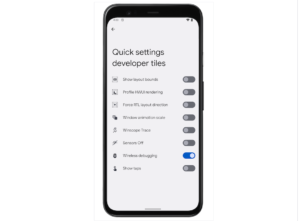
Developer Options Feature Activation Steps
Mirroring via wifi requires special access called Wireless Debugging. This feature does not appear automatically, so you have to activate the secret menu on Android first.
Look for the option that says Version Number or Build Number.
Tap 7 times in a row until a notification appears that you have become a developer.
Go back to the main Settings menu, search for it System then select Developer Options.
Step by Step Tutorial for Mirroring with Scrcpy
Once the preparation is complete, follow the guide below to start connecting your phone display wirelessly.
1. Enter Wireless Debugging Mode
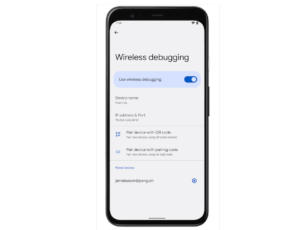
Inside the Developer Options menu, look for the option Wireless Debugging (Wireless Debugging). Activate this feature. Make sure your cellphone is connected to the same WiFi as the laptop. Click on the menu to see the details of the IP address and installation port.
2. Open Command Prompt (CMD)
Open the scrcpy extracted folder that you prepared earlier. In the address bar of the folder (the top part that shows the folder location), type cmd then press Enter. A black Command Prompt window will appear and lead directly to the scrcpy folder.
3. Doing the Installation (Pairing)
For Android version 11 and above, you need to pair first. Look on the cellphone screen in the “Pair device with pairing code” section. In the laptop CMD window, type the command:
adb pair [ipaddress-hp]:[port]
Example: adb pair 192.168.1.15:37895. Enter the installation code that appears on your cellphone screen when prompted.
4. Connecting and Running Scrcpy
After successful pairing, ensure the device is detected by typing adb devices. If it appears, you only need to run the application file, double click on the scrcpy-noconsole.vbs file in the folder. In an instant, your cellphone screen will appear on the laptop.
Comparison Table of Mirroring Methods
Here’s a quick comparison of using scrcpy versus other methods:
Feature
Scrcpy (Wifi)
Windows Connect
Third Party Applications
Cost
Totally Free
Free
Free/Paid
Latency
Very Low
Currently
Varies
Image Quality
Very Clear
Standard
Depends on Connection
Control Features
Mouse & Keyboard
Limited
Paid (Premium)
Problem Solutions (Troubleshooting) Often Occur
Sometimes it’s a process how to mirror cellphone to laptop with wifi not always smooth. Here are some obstacles that are often encountered:
Device Not Found: Make sure the data cable is not plugged in if you want to use WiFi purely. Check again whether the cellphone IP is correct.
Refused Connection: This usually happens because the Wireless Debugging port changes automatically. Go back to the Wireless Debugging menu and make sure the port you typed in CMD matches the one listed on the cellphone.
Screen Crashes (Lag): This is usually caused by wifi frequency interference. Use the 5GHz frequency on your router for more stable results than 2.4GHz.
Authorization Failed: Make sure you always press “Allow” or “Allow” on the pop-up that appears on the cellphone screen during the connection process.
Other Alternative Mirroring Methods
If you find the scrcpy method too technical, there are several other alternatives you can try:
Windows Connect Features: Windows 10 and 11 have a built-in feature called “Wireless Display”. You just need to enable it in the Optional Features section of Windows settings. However, not all cellphones support the Miracast protocol.
LetsView App: According to reports from several technology forums, LetsView is a free application that is quite user-friendly. You only need to install this application on your laptop and cellphone, then scan the QR Code to connect.
AirDroid: This application focuses more on file management, but has quite powerful mirroring features even though there are often limitations in the free version.
FAQ (Frequently Asked Questions)
Is this method of mirroring your cellphone to a laptop using WiFi safe?
It’s perfectly safe as long as you use official applications like scrcpy from GitHub and don’t give debugging access to just anyone on a public network.
Can all brands of cellphones use this method?
Almost all Android phones (version 5.0 and above for scrcpy) can use this method, as long as the Developer Options menu is accessible.
Can I control my cellphone from my laptop using a mouse?
Yes, one of the advantages of scrcpy is that you can operate your cellphone completely using a laptop mouse and keyboard as if you were touching the cellphone screen directly.
What is the minimum wifi speed to run smoothly?
Ideally you have a local connection of at least 10 Mbps or use a router with a minimum standard of wifi 4 (802.11n), but it is recommended to use wifi 5 or 6 for a seamless experience.
How, it’s quite easy, isn’t it? By following the guide above, you can now enjoy a wider screen display for your various productivity needs.
LidahTekno.com is supported by Google Adsense advertising to provide content for you.Please consider disabling AdBlocker or adding us to your whitelist so we can continue providing the best technology information and tips.Thank you for your support!